How to Search Voice Recordings on iPhone
To search your voice recordings on iPhone for something that was said, you need a transcript, because iPhone search looks at text, not sound. Voice Memos can search titles and, on supported iPhones and languages, its own transcripts. For other languages and other sources, transcribe your recordings in an app and search the transcripts there, or from Spotlight if the app adds them to iPhone's search index.
Below are the practical steps, plus the small habits that make the difference between finding a moment in seconds and scrubbing through an hour of audio.
Why you can't just search the audio
A recording is sound. Your iPhone can play it, but it can't look inside it for the word "budget" or the name "Ramirez." Search works on text, so a recording only becomes searchable once its speech has been written down.
That leaves two things you can search:
- The title of the recording, which you type yourself or the app chooses for you.
- The transcript, which contains every word that was spoken.
Titles help you find the right recording. Transcripts help you find the right moment.
Search inside Voice Memos
If your recordings live in Voice Memos, start there.
- Open Voice Memos and tap the search button. On some iOS versions you swipe down on the list to reveal the search field instead.
- Type a word.
- The list shows memos with that text in the title or, where Voice Memos has made one, in the transcription.
Transcriptions in Voice Memos need a recent iOS version, a supported iPhone and a supported language. Apple lists them in its Voice Memos transcription guide. If your memos aren't covered, titles are all Voice Memos can search, so name each memo the moment you finish recording. "Physics lecture 4, entropy" is easy to find. A default name is not.
A transcription app is the next step when you speak a language Voice Memos doesn't transcribe, when you want speaker labels or a custom vocabulary for names, or when your recordings also come from files and videos. Getting memos into one is covered in how to turn voice memos into text.
Search every transcript at once in an app
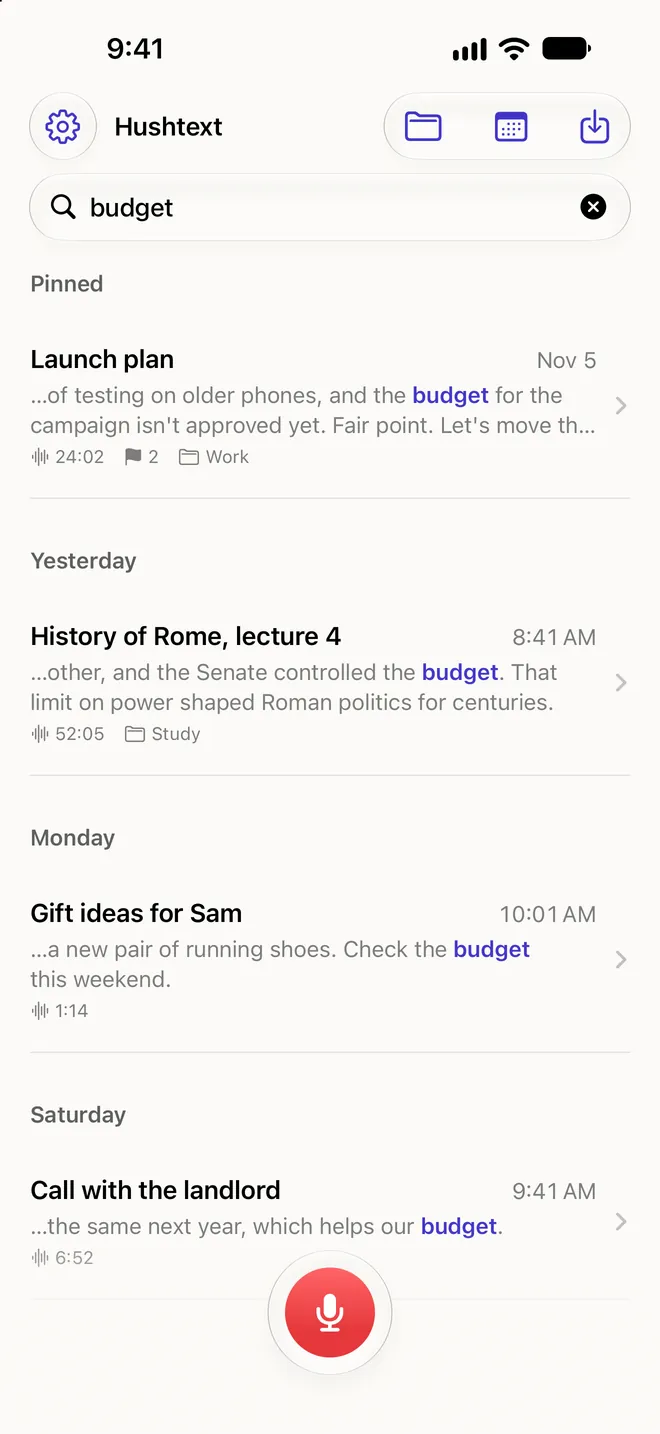
In a transcription app, every recording comes with its text, so one search covers your whole library. Here's how it works in Hushtext.
- Type into the Search all transcripts field at the top of your recordings.
- The list narrows to recordings whose title or transcript contains your word.
- Open a result. The transcript shows where the word appears, and Find in the transcript steps you through each match.
- Tap the word to start playback right there and hear the moment in context.
That last step is the useful one. Playback highlights each word as it's spoken, so you can jump from a search result to the exact second, listen, and confirm what was said. Playback runs from 0.75× to 2×, with 15-second skips back and forward.
Search from anywhere with Spotlight
Spotlight is iPhone's own search: swipe down from the middle of the Home Screen and start typing. Apps can add their content to Spotlight's index, which lives on your iPhone.
Hushtext can add titles and transcripts to Spotlight. Type a word you remember saying and the recording can show up among your other results. Tap it to open it in the app.
You can turn this off in the app's Settings with Show Transcripts in Spotlight. You might want to if your recordings are private, such as a diary or therapy notes, and you'd rather they never surface when you're searching for something else in front of someone. Either way, the index stays on the device.
How to search well
Search is only as good as the words you give it. These habits help more than any setting.
Search for the unusual word. "Meeting" matches everything. "Invoice," "Lisbon," or "the blue prototype" narrows it down to a handful.
Search for what was said, not what it was about. You remember the topic, but the transcript contains the speaker's words. If the conversation was about a raise, someone probably said "salary" or "compensation," not "raise."
Try a second spelling. Speech recognition writes names the way they sound, and a name like "Caitlin" might appear as "Katelyn." If a search comes up empty, try the version a stranger would write.
Fix recurring names once. When a name is wrong throughout a transcript, use Find and Replace so future searches find it. Then add it to the custom vocabulary so the next recording is more likely to get it right.
Check the language. Whisper decides the language at the start of a recording. If a recording switched languages and part of it reads like gibberish, transcribe it again in the language you choose. Searching garbled text finds nothing.
Organize so you search less
The fastest search is the one you don't need. A little structure makes most recordings easy to find by browsing.
- Folders for the big buckets: a class, a client, a project, a family member's appointments.
- Pins for what you're working with this week. Pinned recordings sit at the top.
- Recordings by Date for "it was sometime last Thursday." The calendar shows the days you recorded and lists that day's recordings.
- Titles that say what happened, not just when. "Kickoff with Dana, decided on April launch" is a title you can search and scan.
A simple routine: title the recording as soon as you stop, drop it in a folder, and pin it if you'll need it again soon.
For students, the same approach turns a semester of lectures into something you can actually study from. See how to record and transcribe lectures. And if your recordings are a spoken diary, voice journaling covers how to look back through old entries.
Keep your searchable archive private
A searchable library of everything you've said is powerful, and worth protecting.
Hushtext transcribes on the iPhone with Whisper, OpenAI's speech recognition model, so audio and text never leave the device for transcription or search. There's no account, no sign-in and no analytics. Transcription needs iPhone 13 or later, or an iPad with an A15 or M1 chip or later.
To start, Hushtext transcribes your first 3 recordings in full for free and the first 3 minutes of each one after that. Search only finds words that were transcribed, so with the free version, anything said after those first 3 minutes won't show up in results. Hushtext Pro transcribes recordings of any length.
FAQ
Can you search Voice Memos by the words spoken?
Yes, if your iPhone and language support Voice Memos transcriptions: its search then looks at titles and transcriptions. Otherwise it searches titles only, and a transcription app is the way to search what was said.
Can Spotlight search inside my recordings?
Spotlight searches what apps add to its index. If a transcription app adds its transcripts, as Hushtext can, a word you said can bring up the recording from Spotlight.
How do I find a specific moment in a long recording?
Search the transcript for a word that was said at that moment, then tap the word to start playback right there. It's far faster than scrubbing through the audio.
Is searching my recordings private?
With an on-device app, yes. Transcription, search and the Spotlight index all stay on the iPhone, and nothing is uploaded.