How to Convert Voice Memos to Text on iPhone

To convert a voice memo to text, open the memo in Voice Memos, tap the More button (three dots), tap Share and choose a transcription app. The app makes its own copy of the audio and turns it into a transcript you can read, search, edit and share, while the original stays in Voice Memos.
Recent iOS versions can also make a transcript inside Voice Memos on supported iPhones and in some languages. Below is how to decide between the two, how to deal with long memos, and how to keep a growing pile of transcripts organized.
First, check what Voice Memos can do on its own
Open a memo and look for a transcription. Apple lists the iPhones and languages that get one in its Voice Memos transcription guide. If yours has one and the memo is short and clear, you may not need anything else.
A transcription app is the better fit when you need any of these:
- A language Voice Memos doesn't transcribe (Whisper covers 99)
- Labels for who said what in a conversation
- A custom vocabulary for the names and jargon you use
- Exports such as SRT subtitles or Markdown
- Memos, imported files and videos together in one searchable library
How to share a voice memo to a transcription app
- Open Voice Memos and tap the memo you want.
- Tap the More button (three dots), then Share.
- In the row of apps, tap your transcription app. If you don't see it, swipe to the end of the row and tap More.
- Open the transcription app to start the transcript.
That's it. Sharing never changes or deletes the memo: Voice Memos keeps the original, and the other app works on a copy.
When you share a memo to Hushtext, it's transcribed on the iPhone by Whisper, OpenAI's speech recognition model. Nothing is uploaded, there's no account to create, and it works in Airplane Mode, which matters when your memos are full of personal plans, health notes or half-formed ideas.
If the app doesn't appear in the share sheet, choose Save to Files instead, then open the transcription app and import the file from there.
Long memos: lectures, meetings and an hour of thinking out loud
Voice Memos will happily record for hours, which makes it easy to end up with two-hour memos you've never listened to again. A few things make long ones go better.
Trim dead air first. If a memo has a long silent stretch at the start or end (the phone left running in a bag, say), trim it in Voice Memos before you share it. You'll wait less, and you avoid a known weakness of speech models: during long silence or background noise they can occasionally write words nobody said. If you want to keep the untouched original, duplicate the memo first and trim the copy.
Let it run. Long memos take a while on any phone. Pick an app that keeps transcribing in the background and resumes where it stopped if it's interrupted, so you don't have to babysit it.
Use speaker labels for conversations. If the app can label speakers, tell it how many people spoke, then rename "Speaker 1" and "Speaker 2" to real names once you've worked out who's who.
Check the language. Whisper decides the language at the start of a recording. If a memo opens in one language and switches to another, transcribe it again in the language you choose. You can also set a default language in Settings if most of your memos are in one language.
Know the free limit. Hushtext transcribes your first 3 recordings in full for free. After that, the free version transcribes the first 3 minutes of each recording, and Hushtext Pro transcribes any length.
Clean up the transcript in a few minutes
A transcript you never correct is still useful for searching, but anything you'll quote or send deserves a quick pass. Here's how it goes in Hushtext.
- Start with the marked words. Words Whisper was unsure of are marked, so they're the fastest place to find mistakes.
- Tap to hear. Tap any word to jump to that moment in the audio. Playback highlights each word as it's spoken, and you can slow it down to 0.75× or speed it up to 2×.
- Fix in place. Touch and hold a word to correct it, or edit a whole paragraph.
- Fix names everywhere at once. If a name or term is wrong throughout, use Find and Replace.
- Prevent it next time. Add recurring names and jargon to the custom vocabulary.
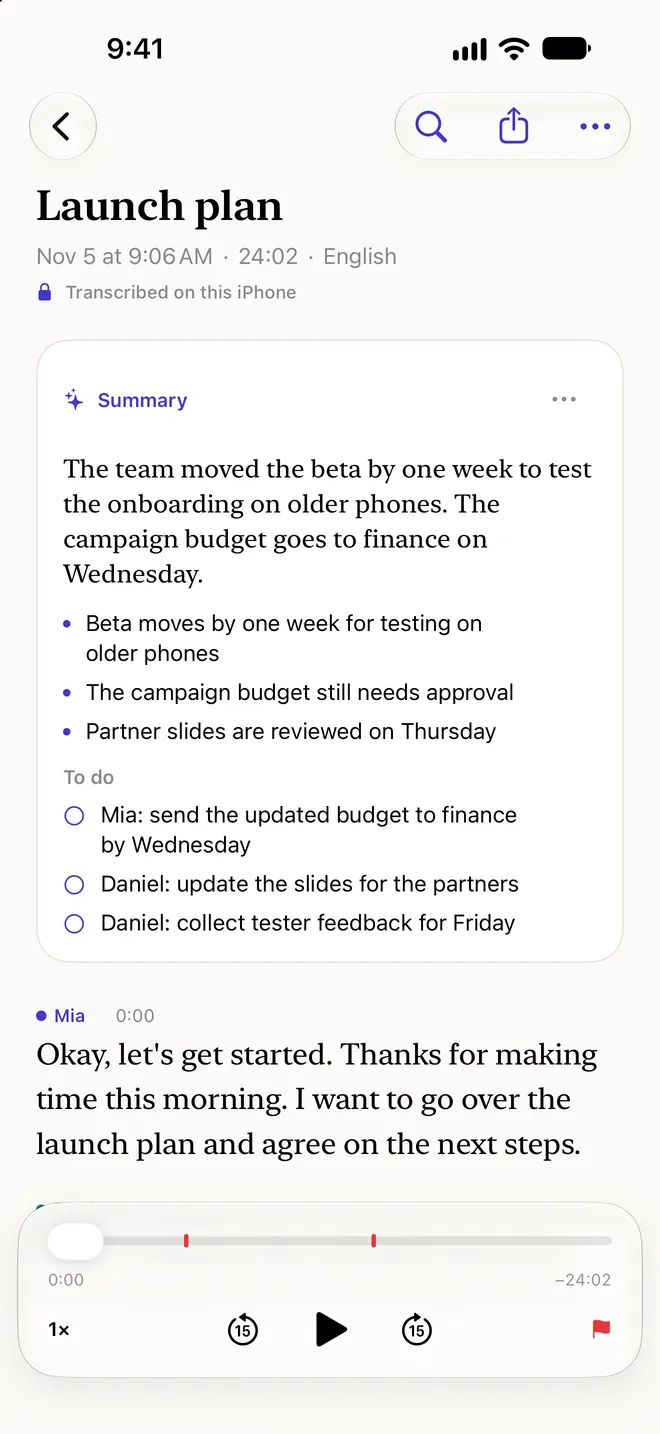
Once it reads right, copy the text, share it as plain text, or with Pro export Markdown or SRT subtitles. On iPhones that support Apple Intelligence, Pro can also write a summary and to-dos on the device.
Organize your memos once they're text
Voice Memos is built for recording. Once your memos are transcripts, you can organize them by what was actually said.
- Give each one a findable title. "Client call, kitchen remodel" beats the default name when you're scrolling months later.
- Use folders for the big buckets. One per class, client, project or person works well.
- Pin what's active. Pinned recordings stay at the top of the list.
- Browse by day. The Recordings by Date calendar answers "what did I record last Tuesday?"
- Search instead of scrolling. One search across all your transcripts finds a memo by what was said. In Hushtext, titles and transcripts can also show up in iPhone's Spotlight search, through an index that stays on the device and can be turned off in Settings.
There's more on this in how to search your voice recordings.
Clearing a backlog of old memos
If you have years of memos, don't try to transcribe them all in one sitting.
- Search Voice Memos first. Its search finds memos by title, and by the words in their transcriptions where Voice Memos has made them. That helps you spot the ones worth keeping.
- Start with what you'll use. Interviews you need to quote, lectures before an exam, ideas you keep meaning to revisit.
- Share them one at a time. It takes a few taps per memo, and the app works through them.
- Keep the originals until you've checked the text. Once you're happy with a transcript, you can decide whether the memo still needs to live in Voice Memos.
If many of your memos are a spoken diary, voice journaling covers prompts, privacy and how to reread old entries. And for every other way to get audio into text, see the complete guide to transcribing audio on iPhone.
FAQ
Can Voice Memos transcribe automatically?
On recent iOS versions, Voice Memos makes its own transcription on supported iPhones and in supported languages. For other languages, speaker labels, corrections or subtitles, share the memo to a transcription app.
How do I convert a voice memo to text without internet?
Use an app that transcribes on the device. Hushtext runs Whisper on the iPhone, so it works offline and in Airplane Mode, and the audio never leaves your phone.
Does sharing a voice memo change or delete it?
No. The transcription app receives a copy, and the original memo stays in Voice Memos exactly as it was.
Can I transcribe memos I recorded on my Apple Watch or Mac?
If Voice Memos syncs through iCloud on your devices, those memos appear in Voice Memos on your iPhone, and you can share them from there like any other memo.