How to Record and Transcribe Lectures
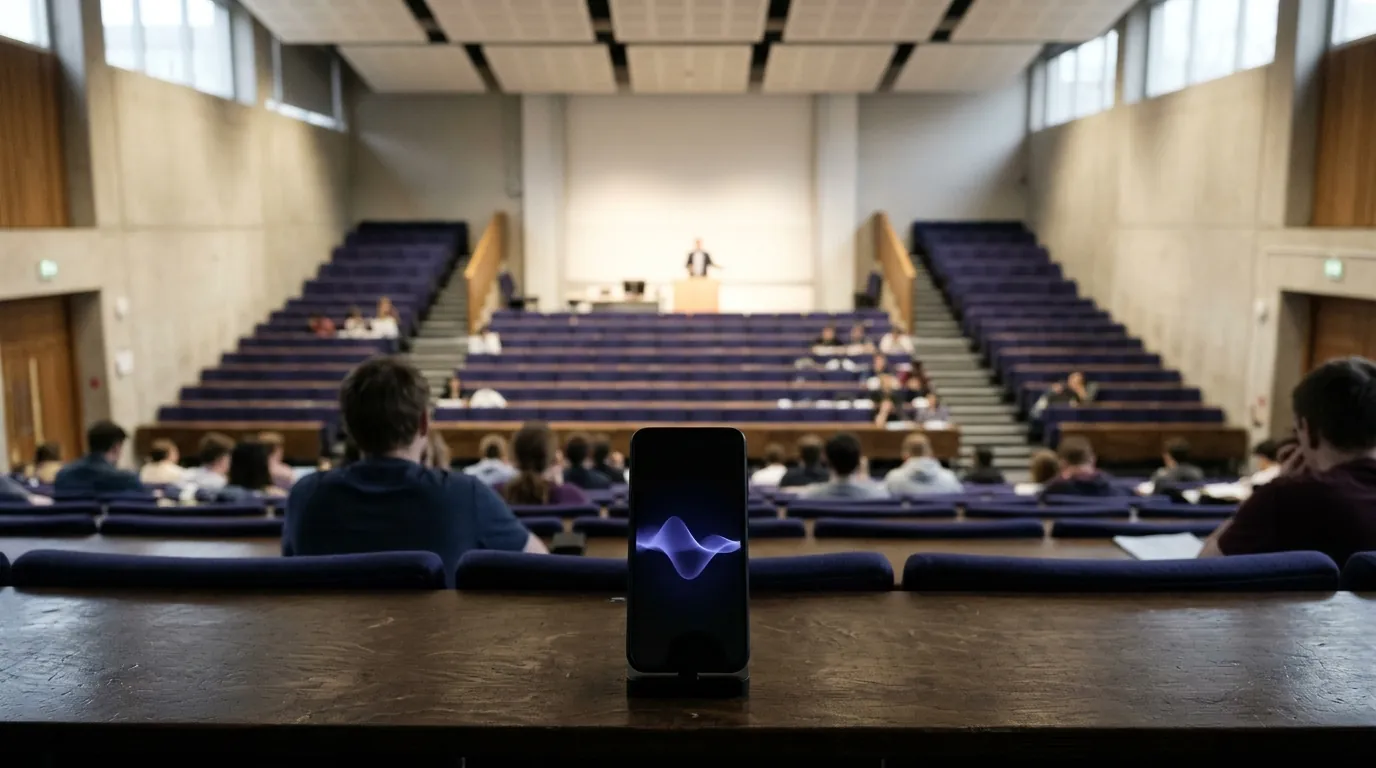
To record and transcribe a lecture, ask your instructor first, put your phone flat on a desk near the front with nothing covering it, and record the whole class in a transcription app. Afterwards, don't reread the transcript from top to bottom: search it for the parts that matter and turn those into short study notes.
Here's how to do each step well, from permission to the notes you'll actually review before an exam.
Before the semester: permission and setup
Ask before you record
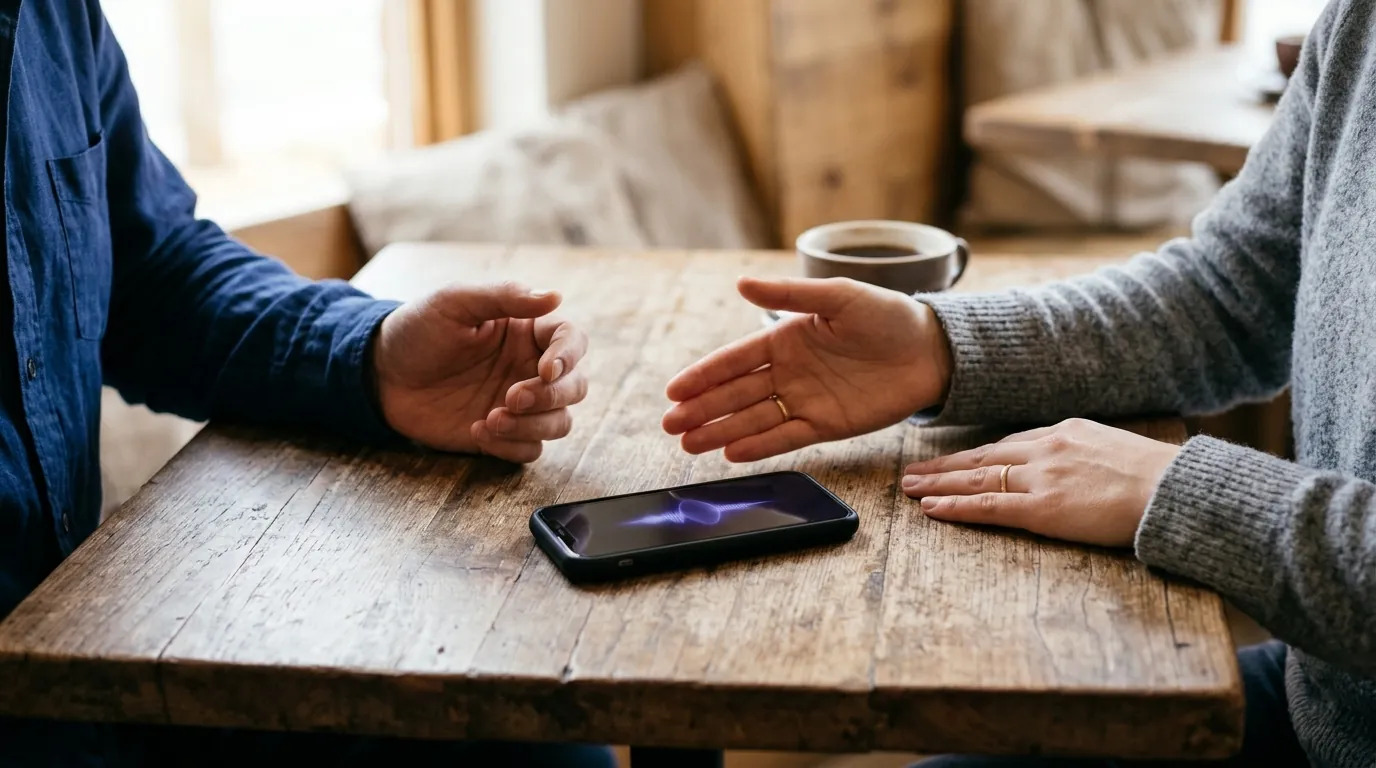
Many instructors are happy to be recorded, some aren't, and many schools have their own rules about recording classes. A short email or a word after the first class settles it: "Would you mind if I record your lectures for my own notes? I won't share them."
Recording laws matter too. In the US, a minority of states generally require everyone's consent to record a conversation, and a class discussion with your classmates can count as one. Our guide to recording consent explains the basics. If you need recordings for accessibility reasons, your school's accessibility office is the right place to ask.
Keep recordings for your own study. Don't post them or pass them around: your classmates' questions are on them too.
Set up the app once per course
A few minutes of setup pays off all semester:
- Language. If the course is taught in one language, set it as the default in Settings, so the app doesn't have to detect the language at the start of every recording. For a language class that switches between languages, transcribe the recording again in the language you need.
- Vocabulary. Add the instructor's name and the terms the course uses: drug names, court cases, chemical compounds, authors. Custom vocabulary helps Whisper spell them the way your textbook does.
- A folder per course. File each lecture in its course folder, and pin the course you're studying for right now.
Where to put your phone
The microphone position matters more than any setting. A few rules:
- Get close. Sit in the front rows if you can. Every row between you and the lecturer adds echo, coughs and whispered chatter.
- Lay it flat and uncovered. Screen up on the desk, not in a pocket, bag or pencil case.
- Keep it away from noise. Not next to your laptop's keyboard, a projector fan or an air vent. A phone on a desk you type on picks up every tap.
- If the lecturer uses a microphone, sit near one of the room's speakers.
- Ask about the lectern. Some instructors will let you leave your phone at the front. Nothing improves a lecture recording more.
Questions from the back of the room will always be quieter. If the lecturer doesn't repeat a question, write a few words of it down.
During the lecture
- Silence interruptions. Turn on Airplane Mode or a Focus. Hushtext works offline, and while a phone call only pauses its recording instead of ending it, you'd still miss that part of the lecture.
- Start recording before the lecture begins. A minute of room noise costs nothing; missing the first announcement does.
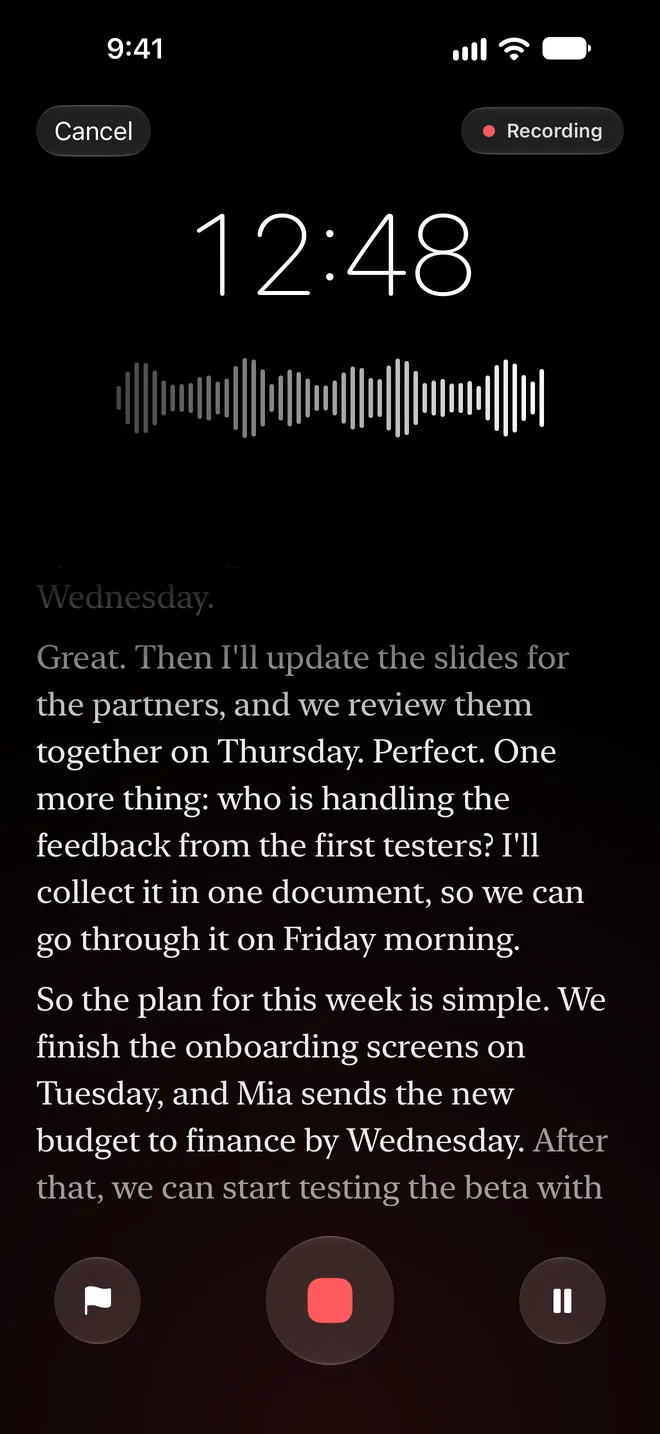
- Check that the text is moving. Whisper writes the text live every few seconds, so one glance tells you the phone can hear the lecturer.
- Lock the phone. The Live Activity on the Lock Screen and in the Dynamic Island has Pause and Stop, so you don't need the app open.
- Jot down cue words. When something sounds important, write down two or three distinctive words the lecturer just said. Later, search for them and you'll land on that exact moment.
- Stop when class ends. Because the text was written as you went, the transcript is almost ready when you stop.
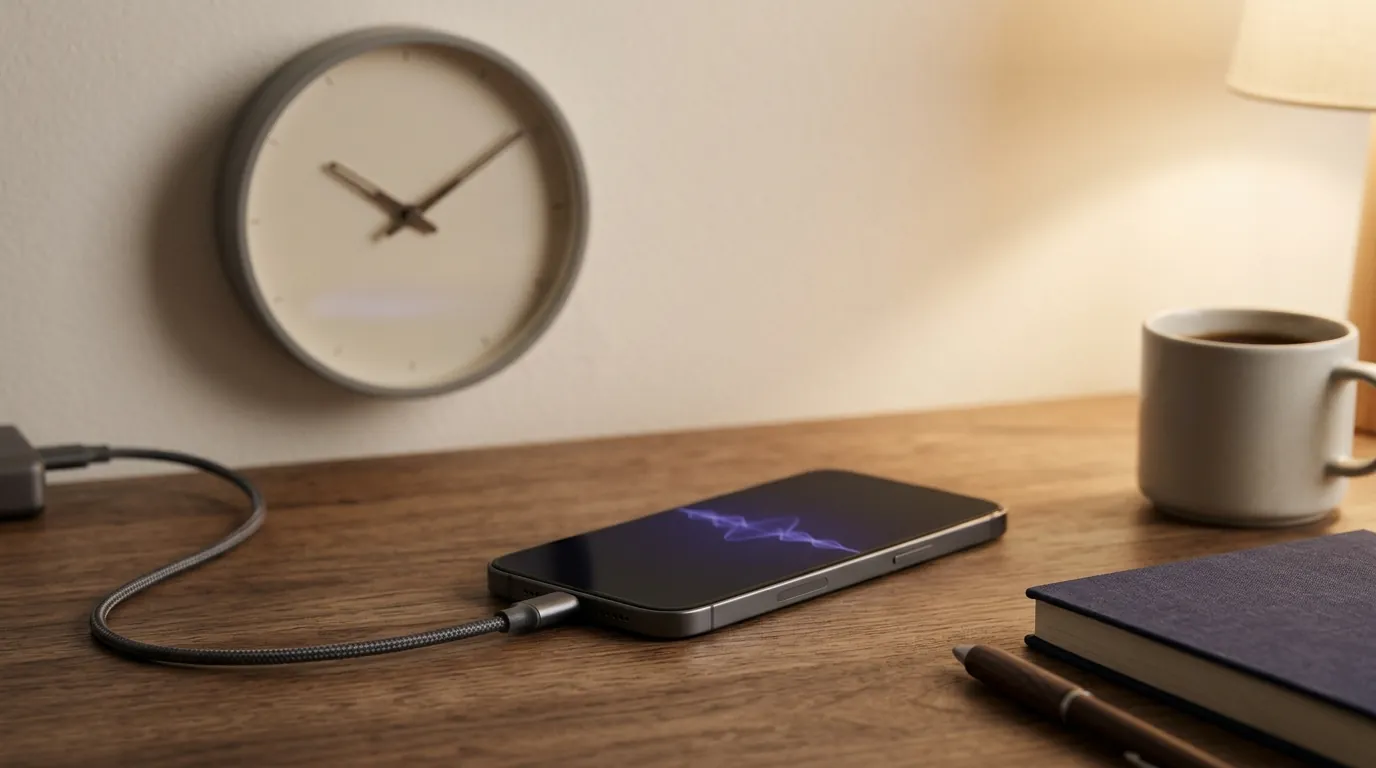
For three-hour seminars and labs, battery and storage start to matter. See our guide to long recordings on iPhone.
After class: find what matters
A one-hour lecture makes a long transcript. Searching beats rereading.
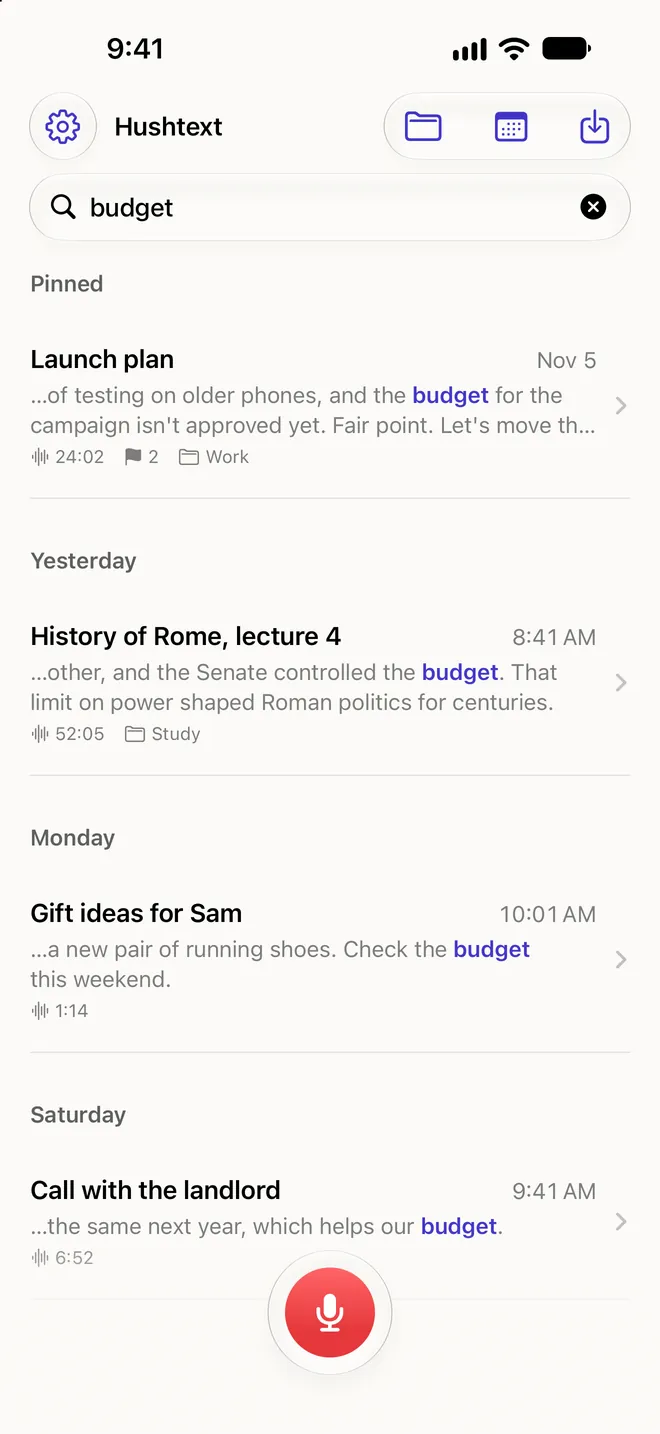
- Search for cue phrases. Lecturers flag what matters out loud: "exam", "test", "important", "remember", "due", "deadline", "assignment". Search for those first.
- Search the whole semester. Search across all recordings to find every lecture where a term came up, which is exactly what you need before a cumulative final.
- Use the calendar. Recordings by Date shows what you recorded on each day, so "the Tuesday before the midterm" is easy to find.
- Use Spotlight. Titles and transcripts can appear in your iPhone's Spotlight search, so you can find a lecture without opening the app.
When a passage is unclear, such as a formula, a name or a number, tap the word and hear the lecturer say it. Playback speed goes from 0.75× for dense material up to 2× for review. Words Whisper was unsure of are marked, so check those first, and touch and hold a word to fix it.
More techniques are in how to search your voice recordings.
Turn the transcript into study notes
A transcript is raw material, not notes. This routine turns an hour of talk into something you can review quickly:
- Split it into topics. Read through fast and start a new paragraph wherever the lecturer moves on. Give each topic a short heading line.
- Cut the housekeeping. Room changes, reminders about office hours and tangents can go.
- Pull out the keepers. Definitions, lists, worked examples, and anything the lecturer repeated or slowed down for.
- Write questions. Turn each key point into a question you can quiz yourself with: "What are the three causes of...?" Answering from memory is harder than rereading, and that's the point.
- Summarize in your own words. Three to five sentences per lecture, written without looking.
With Hushtext Pro, Apple Intelligence can write a summary and to-dos on your iPhone as a starting point, if your iPhone supports Apple Intelligence, it's turned on, and the lecture is in a language it supports. You can copy the text or share it as plain text; Pro adds Markdown export for notes apps that use it.
Getting a more accurate transcript
Distance and noise matter most, then the language setting and your vocabulary list. If a word comes out wrong in every lecture, add it to the vocabulary, then use Find and Replace to fix the transcripts you already have. Our accuracy tips cover the rest.
For seminars and discussion sections, speaker labels ("Speaker 1", "Speaker 2") work on recordings up to 90 minutes. Tell the app how many people spoke, and rename the speakers you know.
One honest note on cost: the free version transcribes your first 3 recordings in full, then the first 3 minutes of each recording. For a semester of full lectures, you'll want Pro.
FAQ
Is it legal to record a lecture?
It depends on your school's rules, your instructor and where you are; some US states generally require everyone's consent. Ask the instructor before you record, and keep the recording for your own study.
Can I transcribe a lecture without internet?
Yes, with an app that transcribes on the device. Hushtext runs Whisper on your iPhone, so it works in a lecture hall with no signal, and in Airplane Mode.
How do I transcribe a lecture recording I already have?
Import the audio or video file into a transcription app, or share it to the app from Files or wherever it's saved. Hushtext accepts both audio and video files.
Can I record lectures on an iPad?
Yes. Transcription needs an iPad with an A15 or M1 chip or later, and the iPad can sit flat on the desk just like a phone.