How to Record Long Audio on iPhone
Your iPhone can record for hours; the real limits are free storage, battery and interruptions. Before a long session, free up space, plug in or bring a battery pack, silence calls with Airplane Mode, and use an app that saves the recording as it goes, so a crash or a call doesn't cost you the session.
Here's what to check before you start, what can go wrong at hour two, and how to avoid it.
Before you start: a five-minute checklist
- Check free space. Go to Settings › General › iPhone Storage. Audio grows with every minute, and a phone that fills up mid-recording can't keep writing. If space is tight, clear out old videos or apps you don't use first.
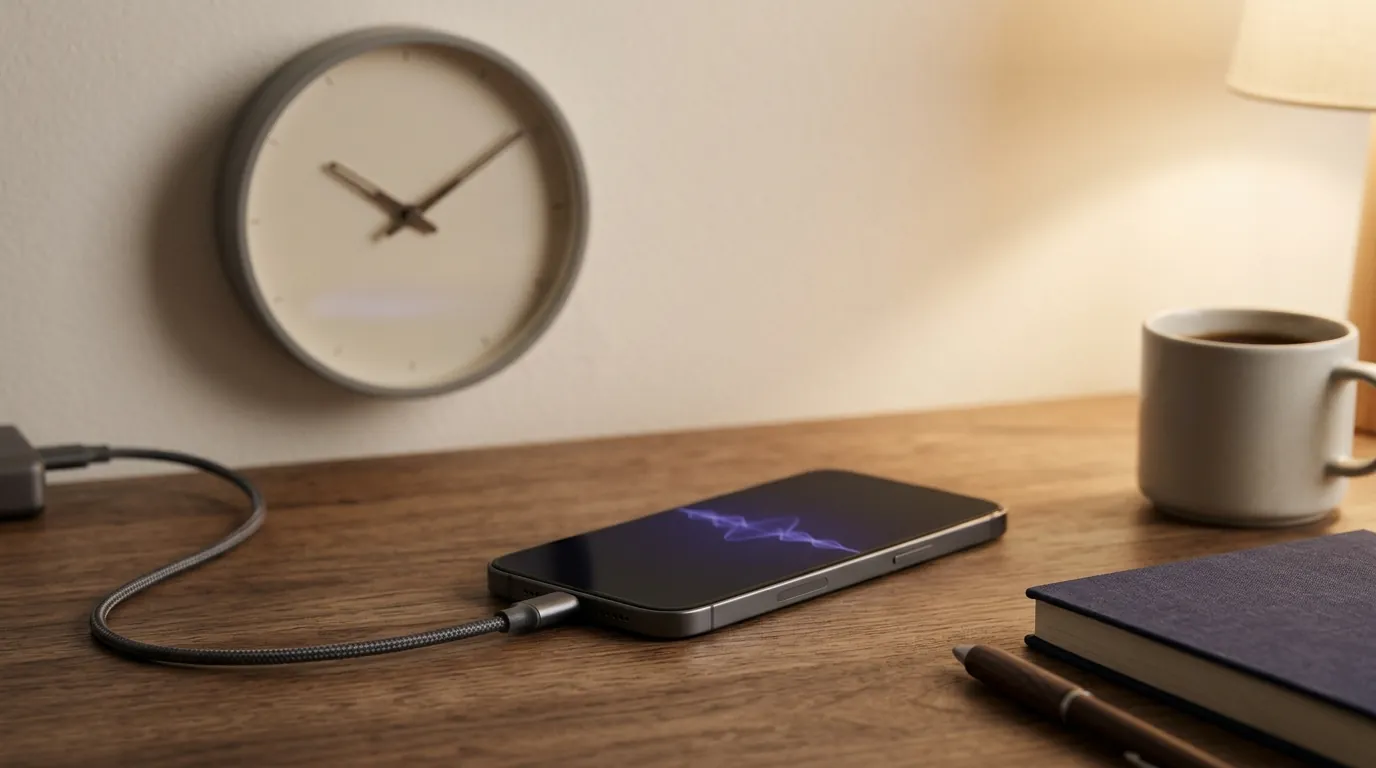
- Charge, and plan for power. Start full. For anything longer than a class, plug into a charger or a battery pack. An app that transcribes while it records uses more power than a plain recorder, because it's running speech recognition as it goes.
- Silence interruptions. Turn on Airplane Mode or a Focus such as Do Not Disturb. Airplane Mode is the surest way to keep calls out, as long as Wi-Fi stays off too, since calls over Wi-Fi can still come through.
- Do a test. Record 20 seconds from where you'll sit, play it back and make sure the voices are clear. Moving the phone after you've started is harder than getting it right first.
- Know how to pause. If there's a lunch break, pause instead of stopping, so the whole session stays in one recording.
Where to put the phone for hours
Long recordings magnify small problems. A phone that's a little too far away for a ten-minute chat gives you three hours of hard-to-hear audio.
- Lay it flat, screen up, in the middle of the people speaking, or close to the main speaker.
- Keep it off surfaces that vibrate or get tapped, such as a laptop's palm rest or a table someone drums on.
- Keep it out of direct sun and away from heaters. A phone that's charging, recording and transcribing at once gets warm, so give it air, not a pillow or a pocket.
- Route the cable so nobody knocks the phone off the table halfway through.
Low Power Mode: on or off?
Low Power Mode cuts background activity, such as mail fetch and downloads, and turns down some visual effects so the battery lasts longer. Recording keeps working with it on. Heavier work, such as transcribing on the device, may take a little longer.
A simple rule:
- Plugged in? Leave Low Power Mode off. Power isn't the problem.
- On battery for a long session? Turn it on at the start, not when the low-battery warning appears.
You can add a Low Power Mode button to Control Center so it's always one swipe away.
Locking the screen and using other apps
The display is one of the biggest power users on any phone, so lock your iPhone once the recording is running. A recording app built for long sessions keeps going in the background.
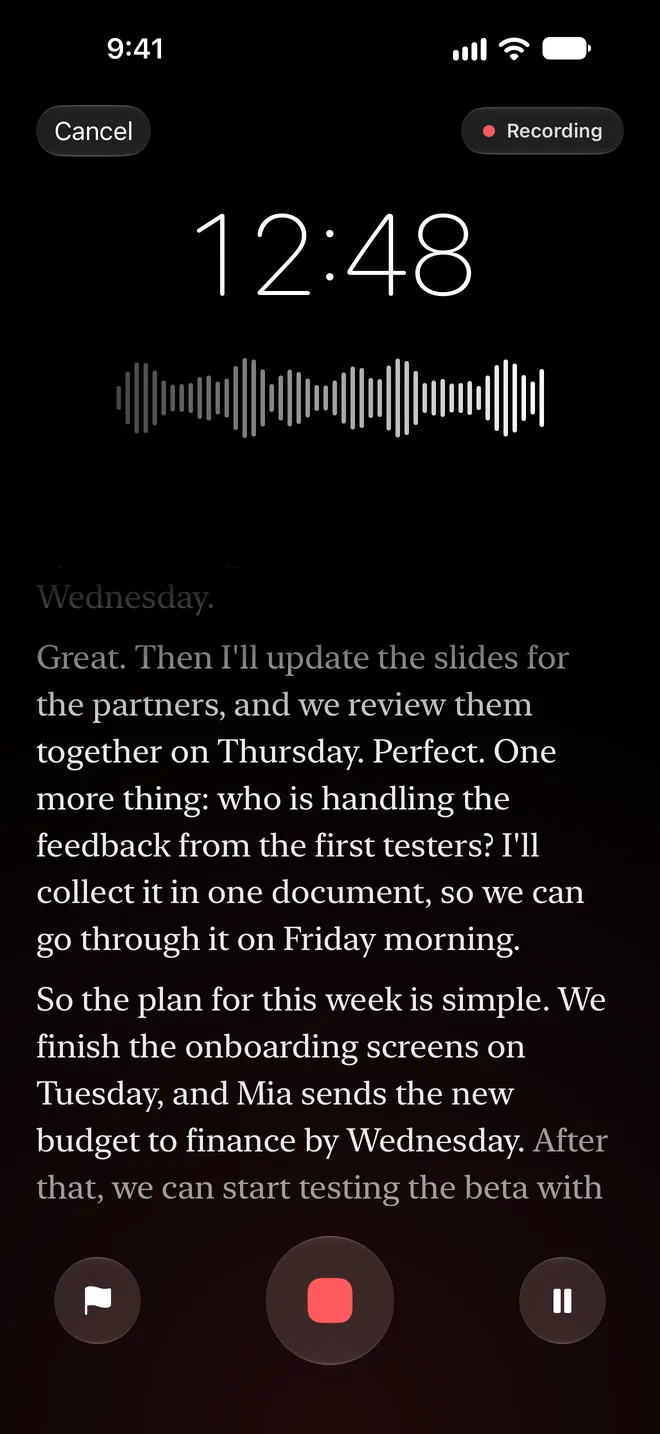
In Hushtext, long recordings keep transcribing in the background, and a Live Activity on the Lock Screen and in the Dynamic Island shows the recording with Pause and Stop. You can check on it without opening the app.
Switching to other apps is fine. Just avoid anything else that wants the microphone, such as filming a video or sending a voice message, while you record.
What happens if a call comes in
On iPhone, a phone call takes over the microphone. What that does to your recording depends on the app, so test yours once with a call from a friend before it matters.
Hushtext pauses the recording when a call comes in instead of ending it, so you don't end up with a meeting split in two. Resume when the call is over. The call itself isn't recorded; if that's what you need, read how to transcribe phone calls on iPhone.
The best fix is prevention: with Airplane Mode on and Wi-Fi off, calls don't come in at all.
What happens if the app closes
This is the failure that hurts most: hours of audio that only existed in memory until you pressed Stop. Before you trust an app with a long session, find out whether it saves as it records.
Hushtext saves the recording continuously, so it survives if the app closes. If a transcription is interrupted, it resumes where it stopped instead of starting over. With an app that doesn't save as it goes, the cautious habit is to stop and start a new recording at each natural break.
One long recording or several shorter ones?
Both work. The trade-offs:
| One long recording | Several shorter recordings | |
|---|---|---|
| Effort | Start once and forget it | Stop and start at each break |
| Risk | Everything in one file | A problem affects only one part |
| Speaker labels (Hushtext) | Up to 90 minutes | Each part up to 90 minutes |
| Finding things | Search one transcript | Search across all recordings |
If you need speaker labels ("Speaker 1", "Speaker 2") for an all-day workshop, record each session separately and keep each one under 90 minutes. Put the parts in one folder so they stay together.
After the recording
Because Whisper writes the text live every few seconds while you record, the transcript is almost ready when you stop, even after hours. If you leave the app, a long recording carries on transcribing in the background.
A note on the free version: it transcribes your first 3 recordings in full, then the first 3 minutes of each recording. Pro transcribes recordings of any length in full.
If you recorded on something else, such as a dedicated recorder or Voice Memos, import the file or share it to your transcription app. Our guide to transcribing audio on iPhone walks through each route.
Setups for common long sessions
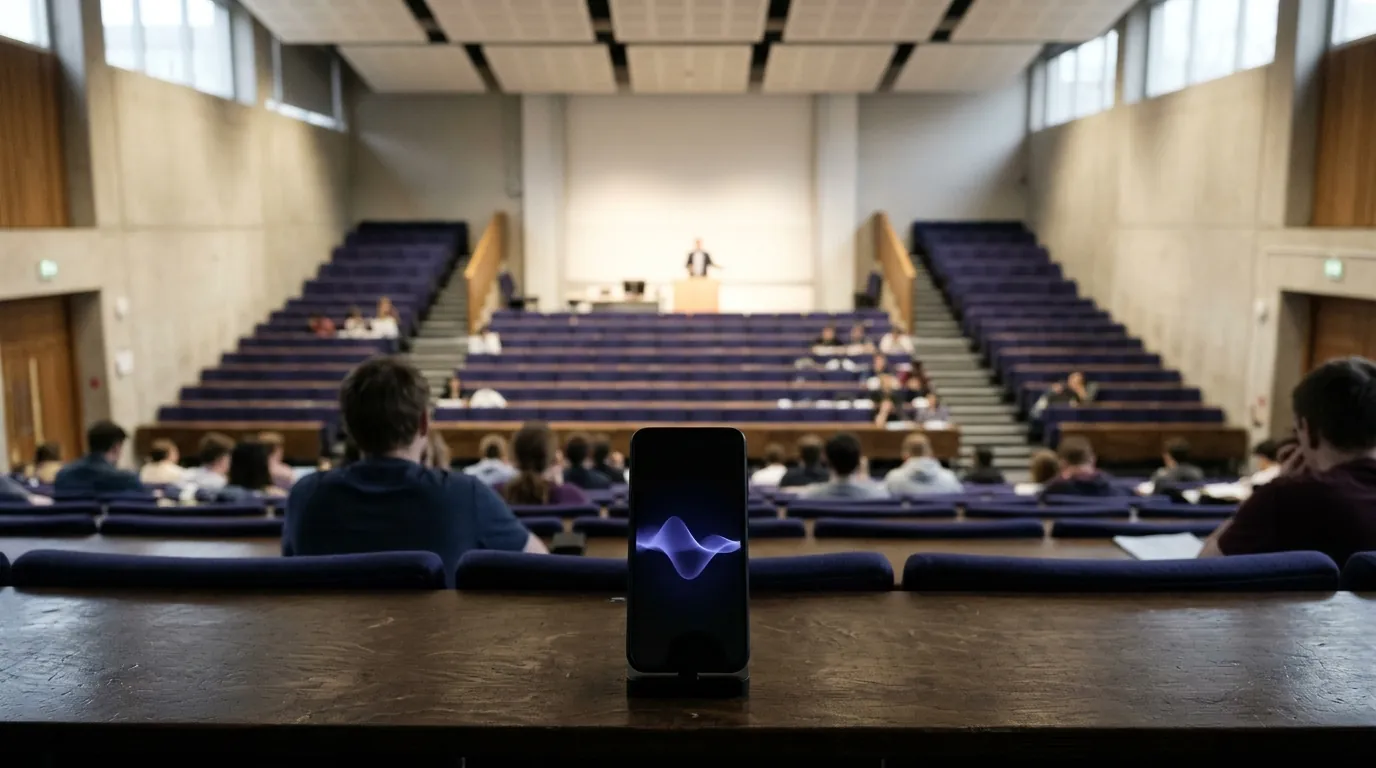
- Lectures and seminars. Sit close and record each class separately. See how to record and transcribe lectures.
- Workshops and conferences. One recording per session, phone plugged in, Airplane Mode on.
- Long interviews. Pause during breaks rather than stopping, so each interview stays in one file.
- Thoughts on the move. For short notes rather than hours, your wrist can be quicker than your phone; see voice notes on Apple Watch.
FAQ
Is there a time limit for recording on iPhone?
In practice the limits are free storage and battery, not a timer. With Hushtext Pro, recordings of any length are transcribed in full; the free version transcribes the first 3 minutes of each recording after your first three.
Does iPhone keep recording when the screen is locked?
Recording apps built for it keep going while the phone is locked. Hushtext keeps recording and transcribing in the background, with Pause and Stop on the Lock Screen.
Will a phone call stop my recording?
It depends on the app. Hushtext pauses the recording during a call, and you resume it afterwards; Airplane Mode with Wi-Fi off keeps calls from coming in at all.
How do I record for hours without the battery dying?
Plug into power or a battery pack, lock the screen and turn on Airplane Mode. On battery alone, turn on Low Power Mode from the start.