How to Turn Your Voice Into Text on Apple Watch
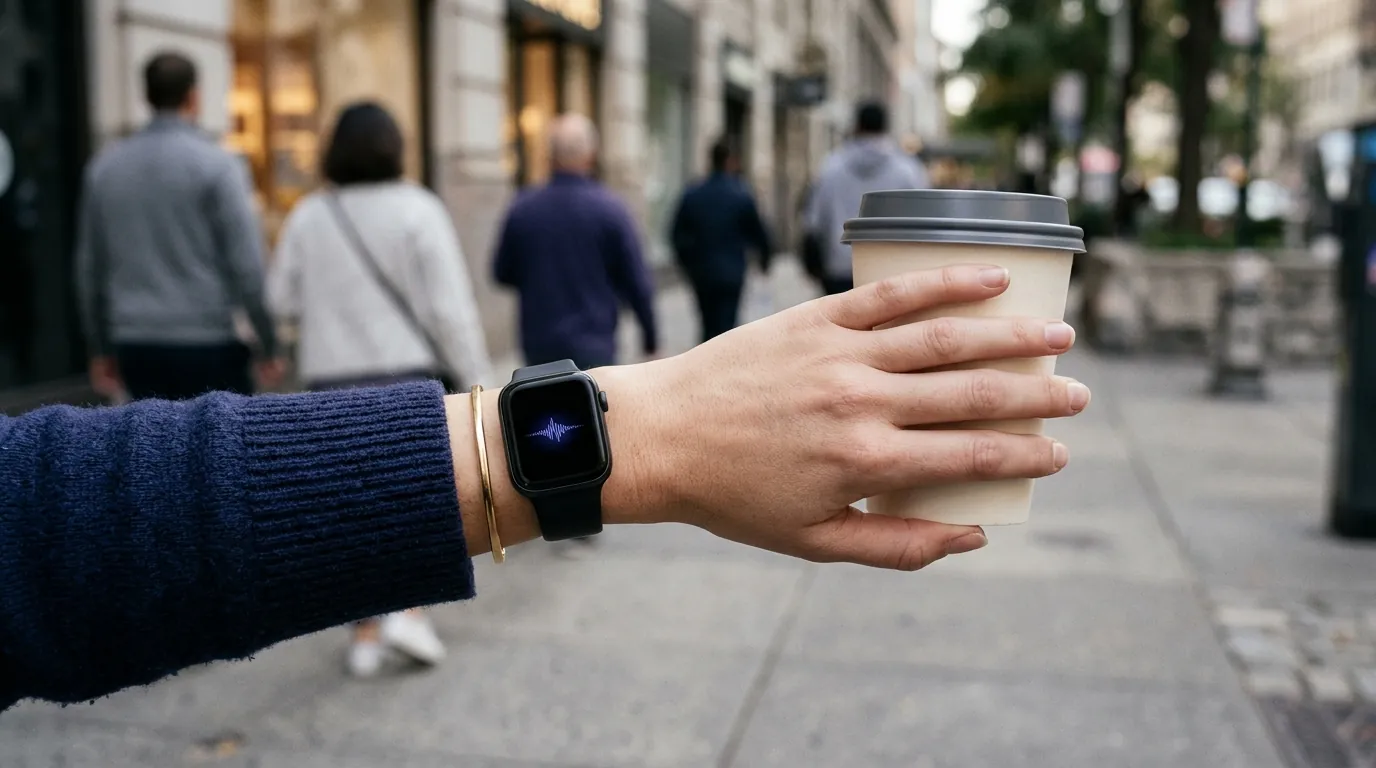
Apple Watch turns your voice into text in two ways. Dictation types short messages and replies as you speak; a recording app keeps the audio and gives you a full transcript. For anything longer than a sentence, record a voice note on the Watch, let your iPhone transcribe it, and read the text back on your wrist.
Here's when to use each, how to set up one-tap recording from your watch face, and how to get clear recordings from a microphone on your wrist.
Dictation or a voice note?
Dictation is the right tool when the words go straight somewhere, like a reply in Messages. You get text only, and it's made for a sentence or two.
A voice note is better when you're thinking out loud or might need the audio later: an idea on a walk, a list of repairs as you go through a house, the decisions from a meeting you just left. You keep the recording, so you can hear exactly what you said, and the transcript is searchable on your iPhone.
| Dictation | Voice note in a recording app | |
|---|---|---|
| Best for | A reply, a short message | Ideas, lists, anything longer |
| Keeps the audio | No | Yes |
| Where the text goes | Into what you're writing | A transcript you can search and edit |
| Typical length | A sentence or two | Longer thoughts |
How to record a voice note on Apple Watch
Hushtext's Watch app needs watchOS 10 or later. Install the iPhone app first. If the app doesn't show up on your Watch, open the Watch app on your iPhone, find it under Available Apps and tap Install.
- Open the app on your Watch, or tap its complication on your watch face.
- Tap Record. The first time, allow access to the microphone.
- Speak, then tap Stop.
- The recording goes straight to your paired iPhone over Apple's own Watch–iPhone connection. No server is involved.
- Your iPhone transcribes it with Whisper, and the text shows on your Watch.
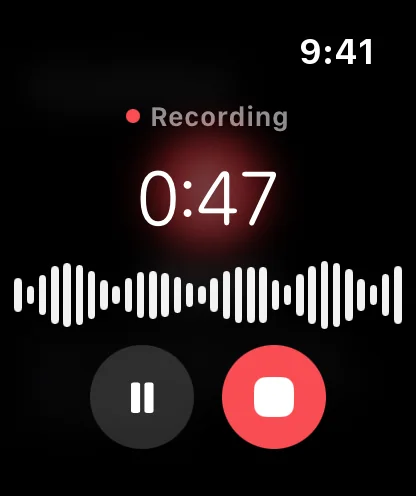
Because the transcription happens on the phone, it needs a paired iPhone 13 or later.
Put a Record button on your watch face
A complication makes recording one tap from the watch face. That's what makes the Watch fast enough for ideas that would otherwise be gone by the time you find your phone.
- Touch and hold the watch face, then tap Edit.
- Swipe to the complications screen.
- Tap the slot you want and choose Hushtext.
- Press the Digital Crown to save, then tap the face.
Pick a slot you can hit without looking, such as a corner. If you use more than one watch face, add it to the faces you wear on walks or at work.
How the text gets back to your wrist
The Watch's job is to be the microphone. The heavy lifting happens on your iPhone, which has far more processing power and a much bigger battery.
Hushtext runs Whisper Large V3 Turbo, a speech recognition model built into the app, entirely on the iPhone. The recording travels from Watch to iPhone over Apple's own connection between the two devices, not through a server, and when the iPhone has transcribed it, the text shows on your Watch. There's no account, no sign-in, and no cloud transcription service in the middle.

On the iPhone you get everything else: playback that highlights each word as it's spoken, a tap on any word to hear that moment, editing, and search across all your recordings.
When the wrist beats the phone
- Your hands are busy. Cooking, carrying groceries, holding a child's hand. Raise your wrist, tap, talk.
- You're moving. Ideas tend to show up on walks and runs, and stopping to dig out a phone breaks the rhythm.
- Your phone is somewhere else. Charging in another room, or at the bottom of a bag.
- It's dark. A thought at 2 a.m. doesn't need a bright phone screen in your face.
- You just left a meeting. Say the decisions and next steps on the way out, while they're fresh.
When the phone is better: long meetings, lectures and interviews. A phone on the table sits closer to everyone talking and has a much bigger battery for hours of recording. See long recordings on iPhone.
Tips for clearer recordings on the Watch
- Bring your wrist up. Hold the Watch a little below your chin and speak toward it at a normal volume.
- Wait a beat. Start talking a moment after you tap Record, so your first word isn't clipped.
- Mind the wind. Outdoors, turn your back to the wind or cup your other hand around the Watch.
- Watch your sleeve. A jacket cuff rubbing on the Watch is loud on the recording. Push it back.
- Say the topic first. "Gift idea for Mom" or "Kitchen faucet" gives you a word to search for later.
- One thought per note. Short, separate notes are easier to find and file than one long ramble.
- Teach it your names. Add names and unusual terms to the custom vocabulary on your iPhone, so they're spelled right. If you always speak the same language, set it as the default in Settings.
Finding your Watch notes later
Your Watch notes are transcribed on your iPhone, so search across all recordings finds them along with everything else. Titles and transcripts can also appear in your iPhone's Spotlight search, and you can file notes into folders or pin the ones you're working on.
For more ways to start recording in a second, see capture ideas with voice notes. For files you recorded elsewhere, see how to transcribe audio on iPhone.
FAQ
Can Apple Watch transcribe voice to text?
Yes. Dictation types short messages as you speak. For longer notes, record in an app like Hushtext: the Watch records, your iPhone transcribes, and the text shows on the Watch.
Which Apple Watch and iPhone do I need?
For Hushtext, your Watch needs watchOS 10 or later. Transcription happens on the paired iPhone, which needs to be an iPhone 13 or later.
Does my voice note go to a server?
Not with Hushtext. The recording goes from the Watch to your paired iPhone over Apple's own Watch–iPhone connection and is transcribed on the iPhone itself.
Can I start a recording from the watch face?
Yes. Add the app's Record complication to your watch face, and recording is one tap away.