Capture Ideas With Voice Notes Before They Slip Away

The best voice notes app for ideas is one you can start in a second or two, before the thought is gone. Put a record button where your hand already goes, such as Control Center, the Action button, Siri or your watch face, and use an app that turns speech into text, so your ideas end up searchable instead of buried in audio files.
The second half matters as much as the first: a short weekly review turns rambles into notes you'll actually use.
Why thinking out loud works
Ideas show up at bad moments: on a walk, in the shower, halfway through cooking dinner. Typing on a phone means stopping, looking down and editing yourself as you go. Talking doesn't. You can keep walking, keep stirring, and say the half-formed version, which is often the only version you'll get.
The catch with plain voice memos is that audio is hard to skim. Nobody replays a pile of two-minute recordings to find the one about the garden. A transcript fixes that: you can read it in seconds and search it months later.
The fastest ways to start recording
Set up one or two of these today. The goal is simple: starting a note should take less effort than trying to remember the thought.
Control Center
Add a record button to Control Center once:
- Open Control Center: swipe down from the top-right corner of the screen (on an iPhone with a Home button, swipe up from the bottom edge).
- Tap the + at the top of the screen, then Add a Control.
- Search for your recording app and choose its control (in Hushtext, it's called Record).
Now a recording is one swipe and one tap away, wherever you are on your iPhone.
The Action button
On an iPhone with an Action button, you can turn it into a record button, as long as your recording app works with Shortcuts (Hushtext does). Go to Settings › Action Button, swipe to Shortcut, tap Choose a Shortcut and pick the app's recording action. One press and you're talking.
Siri
When your hands are full, ask Siri to "Record with Hushtext" or to "Take a voice note in Hushtext". The recording starts, and you can keep doing what you were doing.
Back Tap
Back Tap lets you run a shortcut by tapping the back of your iPhone.
- In the Shortcuts app, create a shortcut with your recording app's record action.
- Go to Settings › Accessibility › Touch › Back Tap.
- Choose Double Tap or Triple Tap, then pick your shortcut.
Apple Watch
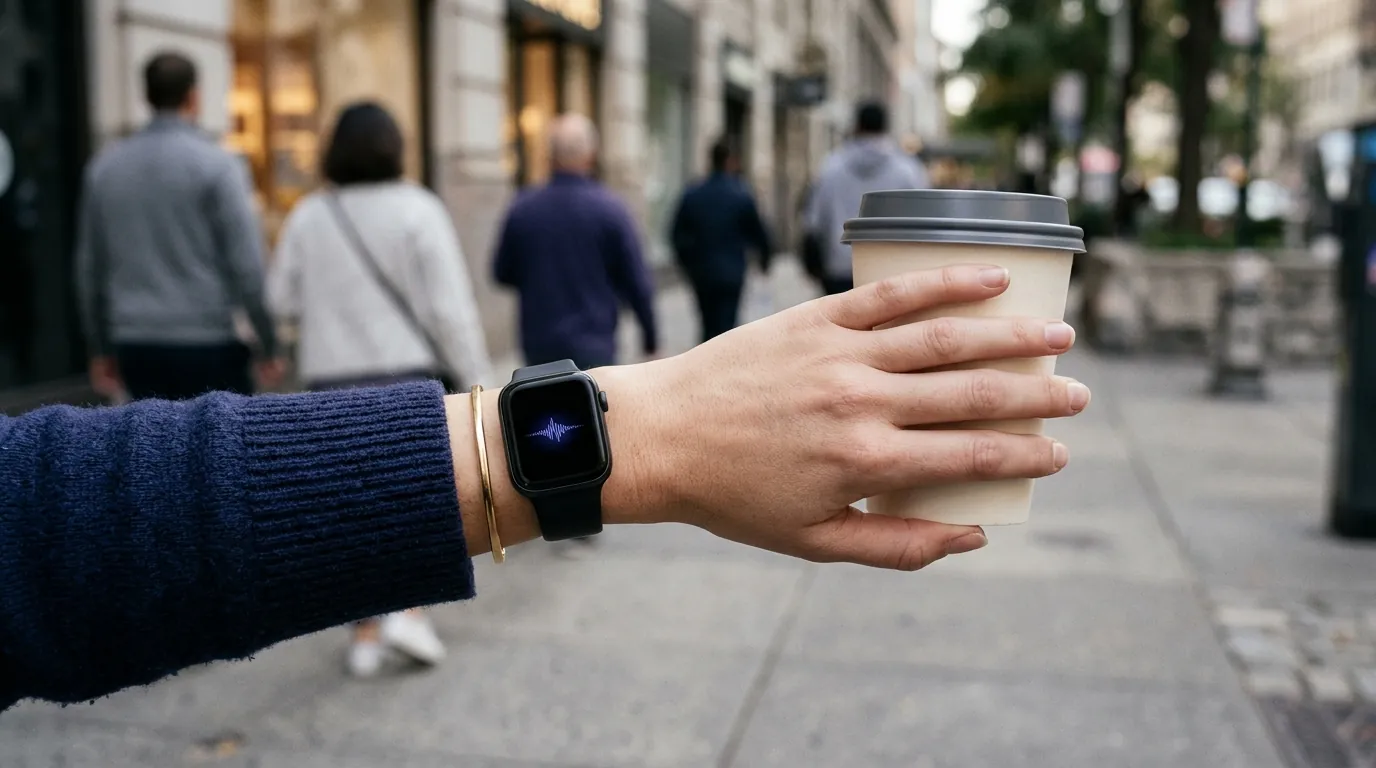
Put a record complication on your watch face and recording is one tap from your wrist. With Hushtext, the recording goes to your paired iPhone, which transcribes it, and the text shows on the Watch. More in our guide to voice notes on Apple Watch.
While you record: the Lock Screen
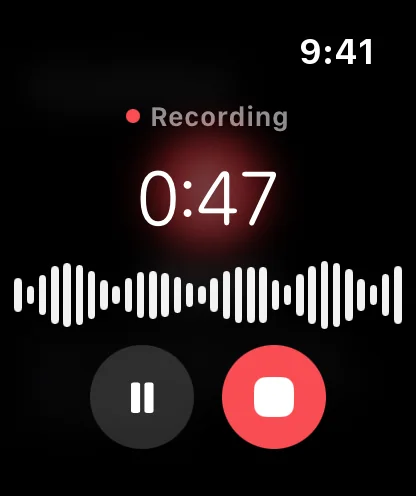
Once a recording is running, you don't need the app open. The Live Activity on the Lock Screen and in the Dynamic Island has Pause and Stop, so you can lock your phone, put it in your pocket and keep talking.
| Method | Setup | Best when |
|---|---|---|
| Control Center | Add the control once | Your phone is already in your hand |
| Action button | Assign it once | You want a physical button |
| Siri | None | Your hands are busy |
| Back Tap | A shortcut, once | You want to start without looking |
| Apple Watch | Add the complication | Your phone is in a bag or another room |
How to talk so your notes are useful later
You don't need to speak in finished sentences, but a few habits make a big difference:
- Start with a label. "Idea for the newsletter." "Birthday gift for Sam." "Bug on the checkout page." That first line is what you'll search for later.
- One idea per note. Five separate notes are easier to sort than one recording that wanders across five topics.
- Say the next step. End with something like "Next step: ask Dana about the budget." A next step you said out loud is easy to find and act on.
- Teach it your words. Add names, product names and jargon to the custom vocabulary so they come out spelled right.
- Don't stop to fix things. Ramble. Cleaning up takes seconds later; a lost idea is gone.
Turning rambles into notes: a weekly routine
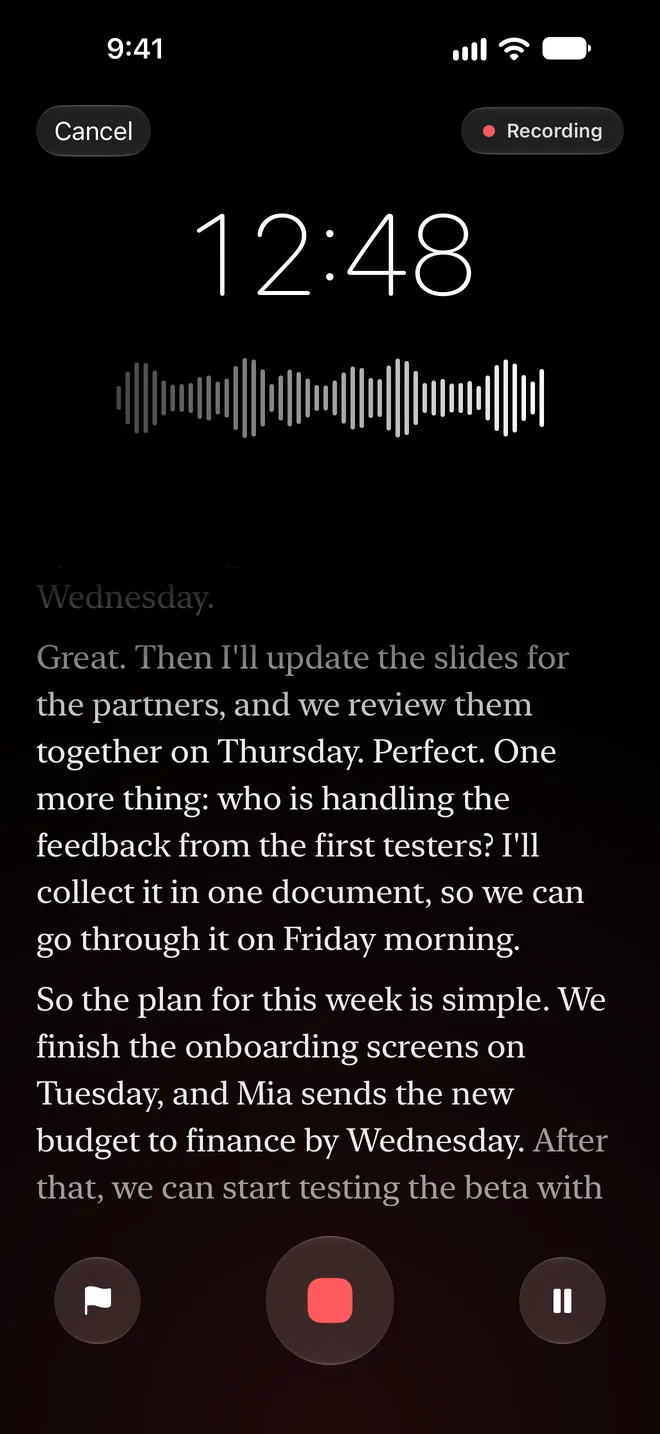
Capturing is half the job. Once a week, set aside a few minutes:
- Open the week. Recordings by Date shows what you recorded on each day.
- Read, don't listen. Skim each transcript and delete the dead ends without guilt.
- Keep the keepers visible. Pin the ideas you're working on, and move the rest into folders by project.
- Tidy what matters. Touch and hold a word to fix it, edit a paragraph, or use Find and Replace for a name that's wrong throughout.
- Pull out the actions. With Hushtext Pro, Apple Intelligence can write a summary and a to-do list on your iPhone, if your iPhone supports Apple Intelligence, it's turned on, and the note is in a language it supports. See summarizing recordings with Apple Intelligence.
- Move it where it belongs. Copy the text into your document, task list or email. Pro adds Markdown export if your notes live in an app that uses it.
An idea that never leaves the voice notes app rarely turns into anything. The routine is what turns a pile of recordings into a working list.
Finding an idea months later
Search across all recordings finds any word you said. Titles and transcripts can also appear in your iPhone's Spotlight search, so an old idea can turn up without opening the app; the index stays on your device, and you can turn it off.
If your notes start to drift toward a diary, our guide to voice journaling covers prompts and privacy.
Keep half-formed ideas private
Early ideas are exactly the kind you don't want sitting on someone else's server. Hushtext transcribes with Whisper entirely on your iPhone: it works offline, there's no account or sign-in, and your audio and text never leave the device.
FAQ
What's the fastest way to record a voice note on iPhone?
Add a record control to Control Center, or set the Action button to start a recording. Either way, a new note is a single tap or press away.
Can I start a voice note with Siri?
Yes. With Hushtext installed, ask Siri to "Record with Hushtext" and the recording starts.
Should I dictate my ideas or record them?
Dictation is fine for a single line. For thinking out loud, a recording keeps the audio and gives you a transcript to search; see iPhone dictation vs a transcription app.
Do voice notes need an internet connection?
Not if the app transcribes on the device. Then everything happens on your iPhone, even in Airplane Mode.