iPhone Dictation or a Transcription App? How to Choose
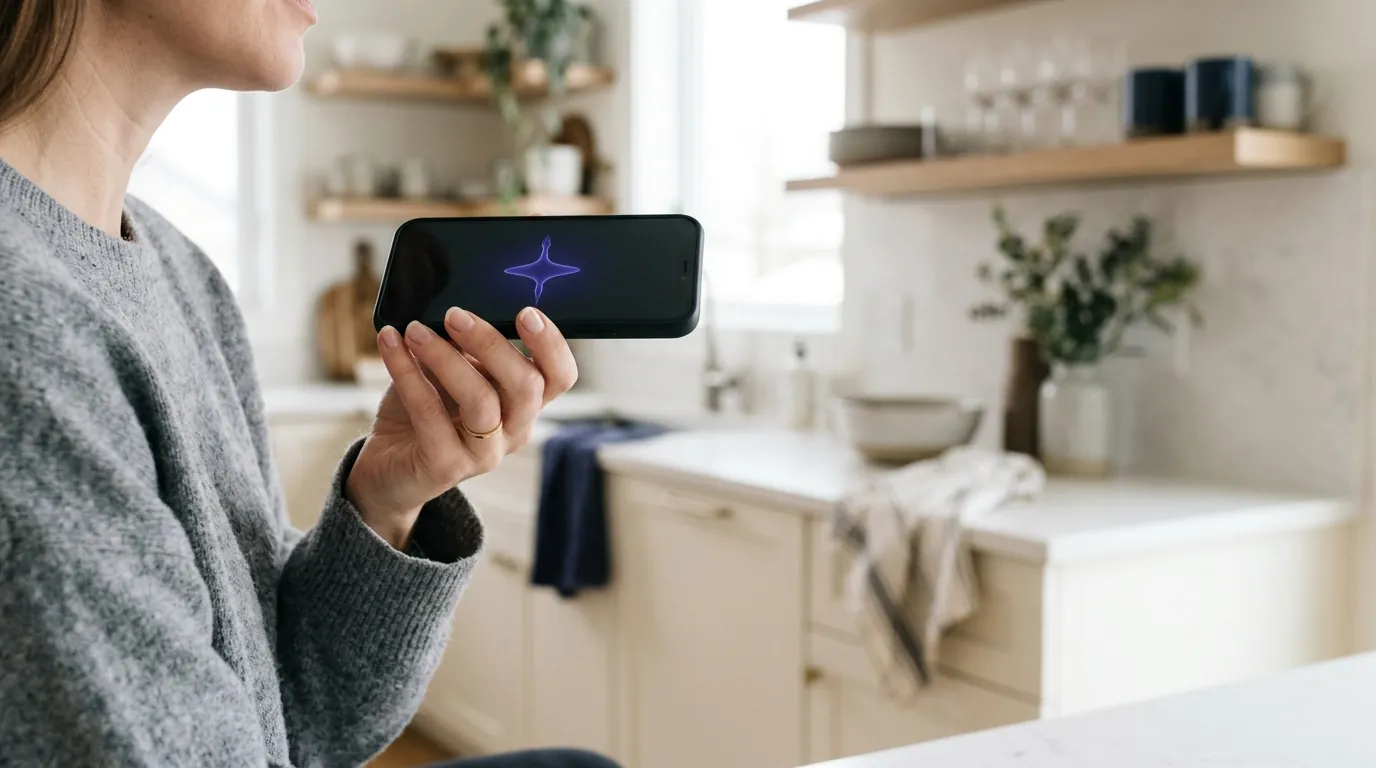
iPhone dictation types your words into whatever text field you're in as you speak, which makes it the fastest way to write a message, a search or a short note. A transcription app records the audio and turns it into a transcript you can play back, search and correct later, so it's the better choice for anything long, anything with other people talking, or anything you'll want to check against the recording.
Most people need both. Here's how each one works, where each falls short, and a simple way to use them together.
How iPhone dictation works
Dictation is built into the iPhone keyboard. To turn it on:
- Open Settings, then General, then Keyboard.
- Turn on Enable Dictation.
To use it, tap in any text field, tap the microphone on the keyboard and start talking. Your words appear as you speak. Tap the microphone again when you're done.
A few things make it work better:
- Say punctuation out loud when you need it: "comma," "period," "question mark," "new line." In languages that support it, dictation can also add punctuation for you.
- Mix voice and typing. The keyboard stays open while you dictate, so you can tap to fix a word without stopping.
- Match the keyboard to the language. Dictation listens in the language of the keyboard you're using. If you speak more than one, add both keyboards and switch with the globe key.
- Read before you send. Dictation is quick, which also makes it easy to send a sentence with one wrong word that changes its meaning.
Apple says dictation is processed on the iPhone in many languages, with no internet connection needed. If you're curious how it handles your voice, the privacy note below the Enable Dictation switch explains it.
What a transcription app does differently
A transcription app starts from a recording rather than a text field. That one difference changes almost everything.
It keeps the audio. If a word comes out wrong, you can listen to what was actually said. With dictation, the sound is gone the moment the text appears.
It's built for length. You can talk for an hour, switch apps or lock the screen, and the recording keeps going. Dictation only works while its text field is on screen, so it ends when you switch apps or the phone locks.
It hears the room, not just you. Meetings, lectures and interviews have several voices at different distances. A transcription app is designed for that, and many can label who said what.
It works with files. Dictation only listens to the microphone, live. A transcription app can also take recordings and videos you already have.
It builds a library. Every recording and its transcript stay together, organized and searchable, instead of being scattered across whatever apps you dictated into.
Dictation vs transcription app at a glance
| iPhone dictation | Transcription app | |
|---|---|---|
| Best for | Messages, searches, short notes | Meetings, lectures, interviews, long thoughts |
| Where the text goes | Straight into the current text field | Into a transcript you can copy or share |
| Audio kept | No | Yes |
| Comfortable length | A few sentences | Minutes to hours |
| Other people's voices | Not what it's designed for | Yes, often with speaker labels |
| Existing recordings and videos | No | Yes |
| Fixing mistakes | Retype from memory | Replay the audio, then fix |
| Searching later | Only inside each app you dictated into | One search across all recordings |
When dictation is the right tool
Use the keyboard microphone when the text has a destination right now:
- Replying to a message or an email
- Typing a search, an address or a reminder
- Adding a quick line to a note or a list
- Filling in a form while your hands are busy
- Writing a paragraph of a document you're already working in
In all of these, a recording would just be an extra step.
When to record instead
Reach for a transcription app when any of these is true:
- You'll talk for more than a minute or two. Long dictation becomes a wall of text with no audio to check it against, and it ends the moment you switch apps or the screen locks.
- You're thinking, not composing. Rambling out loud is a great way to work through an idea, and a recording lets you ramble without worrying about where the text lands.
- Other people are speaking. A class, a team meeting, an interview, a doctor explaining next steps (with permission, of course).
- The exact words matter. Quotes, instructions, decisions. You'll want the audio as proof of what was said.
- You'll come back to it later. Recordings with transcripts are easy to find again. Text dictated into a random note is not.
A workflow that uses both
The most practical setup is to record first and dictate second.
- Record the long version. Talk through the email, the plan or the idea while walking or cooking, without worrying about wording.
- Read the transcript. Pull out the two or three sentences that matter.
- Copy them where they belong, and use dictation for short fixes and replies.
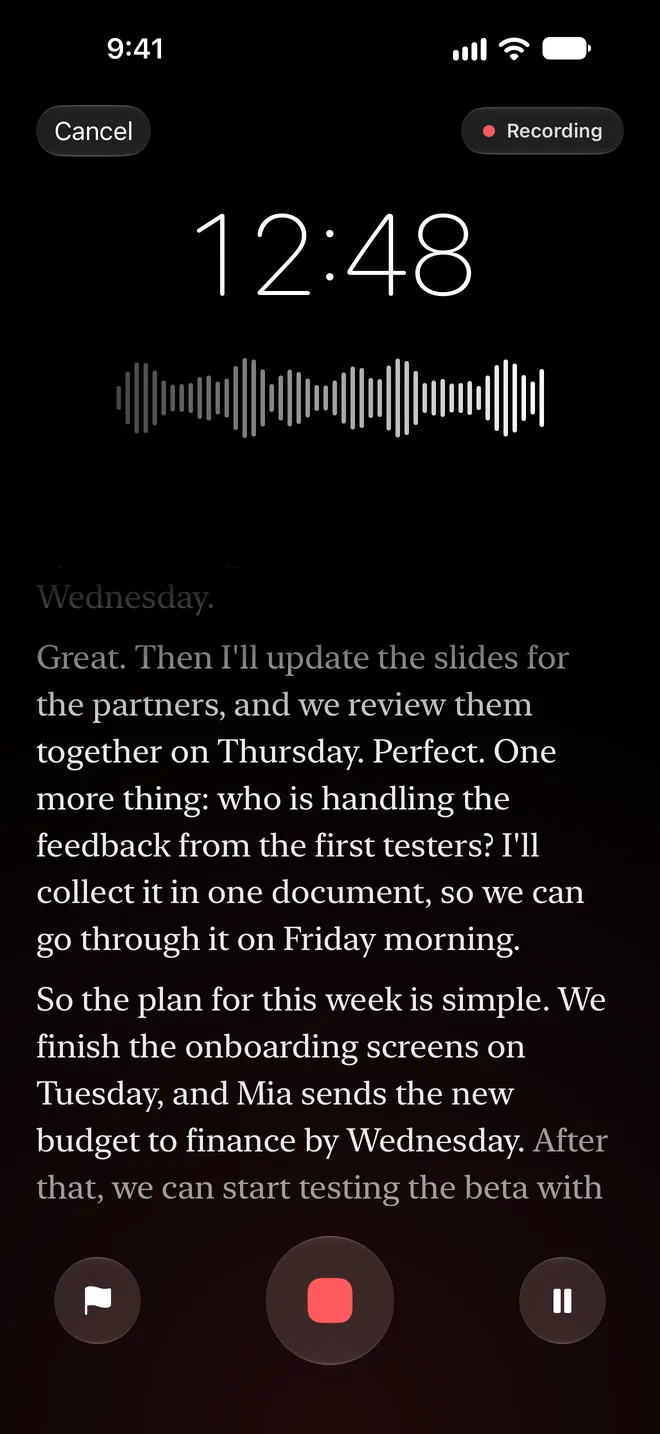
To make the recording step as quick as tapping the keyboard microphone, put it within reach. Hushtext can start a recording from a Control Center control, from Siri ("Record with Hushtext"), from Shortcuts, or on an Apple Watch. While you record, a Live Activity on the Lock Screen and in the Dynamic Island lets you pause or stop without opening the app. There are more ideas in how to capture ideas with voice notes.
What to look for in a transcription app
If you're choosing one, these are the features that make a recording more useful than dictation:
- Text while you talk, so it feels as immediate as dictation.
- Playback that follows the words, so you can tap a word and hear that moment.
- Easy fixes: correct a word in place, find and replace across the transcript, and a custom vocabulary for names and jargon.
- Speaker labels for conversations.
- On-device processing, if privacy matters to you. Offline speech to text explains what you gain and what it costs.
Hushtext covers all five. Whisper writes the text on the phone every few seconds while you record, so the transcript is almost ready when you stop. Playback highlights each word and marks the ones Whisper was unsure of, speaker labels cover recordings up to 90 minutes, and everything runs on the iPhone, in Airplane Mode, with no account. Transcription needs iPhone 13 or later.
For the full picture of getting audio into text on your phone, see how to transcribe audio to text on iPhone.
FAQ
How do I turn on dictation on iPhone?
Go to Settings, then General, then Keyboard, and turn on Enable Dictation. Then tap the microphone on the keyboard in any text field and start talking.
Is there a time limit on iPhone dictation?
Apple says that when dictation runs on the device, you can dictate text of any length without a timeout. It still only works while the text field is on screen and keeps no audio, so for a long talk or a meeting, a recording app is more reliable.
Does iPhone dictation work offline?
In many languages, yes. Apple says dictation is processed on the iPhone in many languages with no internet connection needed, though availability varies by language and region.
Can iPhone dictation transcribe a recording or a meeting?
Not well. Dictation listens to the microphone live and expects one person speaking close to the phone. To transcribe a meeting or an existing recording, use a transcription app that records or imports the audio.