How to Summarize Audio on iPhone with Apple Intelligence
To summarize audio on iPhone, first turn the recording into text, then let Apple Intelligence condense that text into key points and to-dos on the phone itself. You need an iPhone that supports Apple Intelligence, with Apple Intelligence turned on, and a recording in a language it supports.
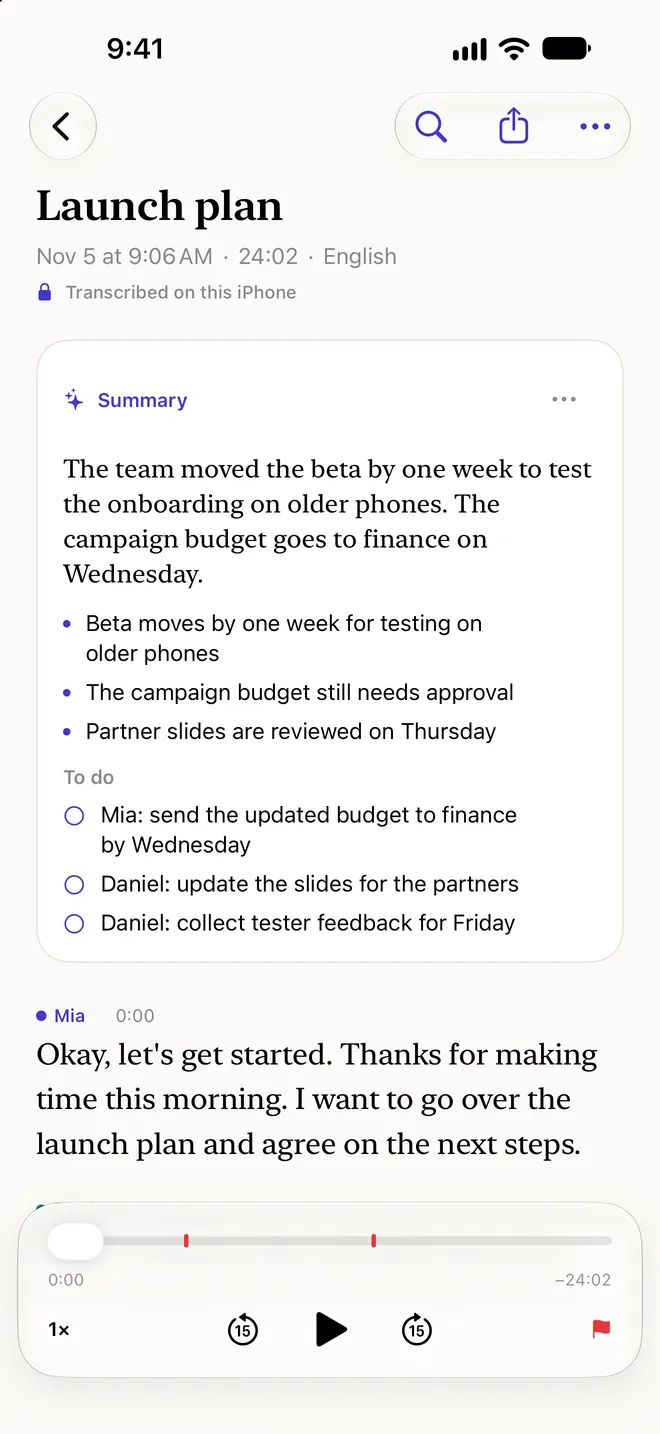
Hushtext does both steps on the device: Whisper Large V3 Turbo writes the transcript, and with Pro, Apple Intelligence writes the summary and to-dos. Nothing is uploaded at either step.
How audio summaries work
A summary of a recording is really a summary of its transcript. Two things happen in order:
- Speech to text. A speech recognition model turns the audio into words. Whisper, for example, recognizes nearly 100 languages and can run on the iPhone itself.
- Text to summary. A language model reads the transcript and writes the main points and the things someone has to do.
That order explains most of what you'll see. If the transcript misheard a name, the summary repeats the mistake. If two people talked over each other and the text came out garbled, the summary has less to work with. Better audio gives a better transcript, and a better transcript gives a better summary.
What you need
- An iPhone that supports Apple Intelligence. That means iPhone 15 Pro or a newer model. Other iPhones that run Hushtext's transcription (iPhone 13 or later) can still record and transcribe; they just can't write summaries. The app's Settings shows whether summaries are available on your phone.
- Apple Intelligence turned on. You'll find it in Settings › Apple Intelligence & Siri. After you turn it on, the iPhone downloads what it needs, which can take a while; summaries work once that's done.
- A supported language. Apple Intelligence works in a set of languages that Apple has been expanding over time, and your iPhone and Siri need to be set to one of them. Recordings in other languages still get full transcripts, just no summary.
- Pro. Summaries and to-dos are part of Hushtext Pro. Without it, your first 3 recordings are transcribed in full, and after that the first 3 minutes of each.
How to summarize a recording, step by step
- Record or import. Record in the app, where text appears while you talk, or import an audio or video file. You can also share a recording from another app, such as Voice Memos, through the share sheet.
- Let the transcript finish. Long recordings keep transcribing in the background.
- Fix the words that matter. Before summarizing, correct names, products and numbers: touch and hold a word to fix it, or use Find and Replace for one that's wrong throughout. A minute here saves a wrong to-do later.
- Ask for the summary. Apple Intelligence writes the key points and to-dos on the iPhone.
- Check it against the transcript. Tap a word in the transcript to hear the moment behind a to-do, especially names, dates and amounts.
- Share it. Copy the summary, or with Pro, export the recording as Markdown.
How to get better summaries
A summary can only be as clear as what was said. A few habits make a big difference:
- Say decisions out loud. "So we've decided to ship on Friday" gives the model a sentence it can't miss. A decision that's only implied across ten minutes of discussion is easy to lose.
- Name the owner of every task. "Sam, can you send the deck by Thursday?" turns into a clear to-do. "Someone should send the deck" doesn't.
- End with a recap. A short recap at the end of a meeting or a voice note ("To recap, three things…") is the best material a summary can get.
- Keep one topic per recording when you can. A focused note summarizes better than a long recording that wanders across five projects. On-device language models read a limited amount of text at a time, so very long transcripts are harder to condense well.
- Stick to one language per recording. The language is detected at the start of a recording. If yours switches partway, transcribe it again in the language you choose, then summarize.
- Think in lists. "Three ideas for the talk: one… two… three…" gives the summary a structure to keep. This works especially well for quick voice notes and ideas.
For meetings, a summary is a first draft of the minutes, not the minutes themselves. Our guide to writing meeting minutes from a transcript shows what to add, and our guide to transcribing meetings without a bot covers getting a clean recording in the first place.
What a summary can and can't do
A good summary saves you from rereading an hour of text. It isn't a record. Expect it to:
- Leave out nuance, side points and who disagreed with whom.
- Occasionally get a detail wrong, such as an owner, a date or a number.
- Miss anything nobody said explicitly.
So use summaries to get your bearings and to draft notes, and treat the transcript as the source of truth. Anything you'll send to others, quote or act on deserves a quick check against the audio.
Privacy: summaries that stay on the iPhone
Cloud summary services upload your recording or its transcript to their servers to process it. In Hushtext, Whisper transcribes on the device and Apple Intelligence writes the summary on the iPhone, so neither the audio nor the text has to go anywhere. There's no account and no sign-in, and Chili Logic runs no servers that receive audio or transcripts.
That matters for exactly the recordings people most want summarized: work meetings, interviews and notes to themselves. A summary of a confidential conversation is still confidential, and it's easier to keep it that way when it never leaves your phone.
FAQ
Can iPhone summarize a voice recording?
Yes, on iPhones that support Apple Intelligence. In Hushtext, Whisper turns the recording into text and, with Pro, Apple Intelligence summarizes it on the iPhone.
Which iPhones can summarize audio with Apple Intelligence?
Models that support Apple Intelligence, which means iPhone 15 Pro and newer. Hushtext transcribes on iPhone 13 or later, so an older model such as an iPhone 13 or 14 can transcribe but not summarize.
Why can't I summarize a recording?
Usually it's one of four things: the iPhone doesn't support Apple Intelligence, it's turned off or still downloading, the language isn't supported yet, or you don't have Pro. Settings in the app shows whether summaries are available.
Are Apple Intelligence summaries private?
They can be. When Apple Intelligence writes the summary on the iPhone itself, as it does here, the transcript isn't sent to a server to be summarized.