12 Ways to Improve Transcription Accuracy

To improve transcription accuracy, fix the recording first: get the microphone close to whoever is speaking, cut background noise and echo, and keep to one voice at a time. Then tell the app what it can't guess, such as the language and the names you use, and check the words it marks as uncertain instead of rereading everything.
The twelve tips below follow that order: before you record, setting up the app, while you record, and after.
Before you record
1. Get the microphone close
Distance is the thing you control most. The farther the phone is from the speaker, the more room noise and echo it picks up compared with the voice. For one speaker, keep the phone within arm's length. In a lecture, sit near the front instead of recording from the back row.
2. Lay the phone flat, uncovered, on something soft
Put the phone screen up on the table with nothing over its edges: no notebook, no hand, no bag. A phone in a pocket or bag records muffled audio. A folded napkin or cloth underneath dampens knocks, typing and cups set down on the table, which otherwise travel through the hard surface straight into the recording.
3. Turn off steady noise
Fans, air conditioning, a dishwasher, music in the background. Your ears tune them out; the microphone doesn't. Switch off what you can, close the window on a busy street, and in a café, pick the table farthest from the coffee machine.
4. Choose a room that doesn't echo
Hard, empty rooms bounce sound around, and the echo smears words together. A smaller room with carpet, curtains or upholstered chairs records more clearly than a large room with bare walls and glass.
5. In meetings, put one phone in the middle
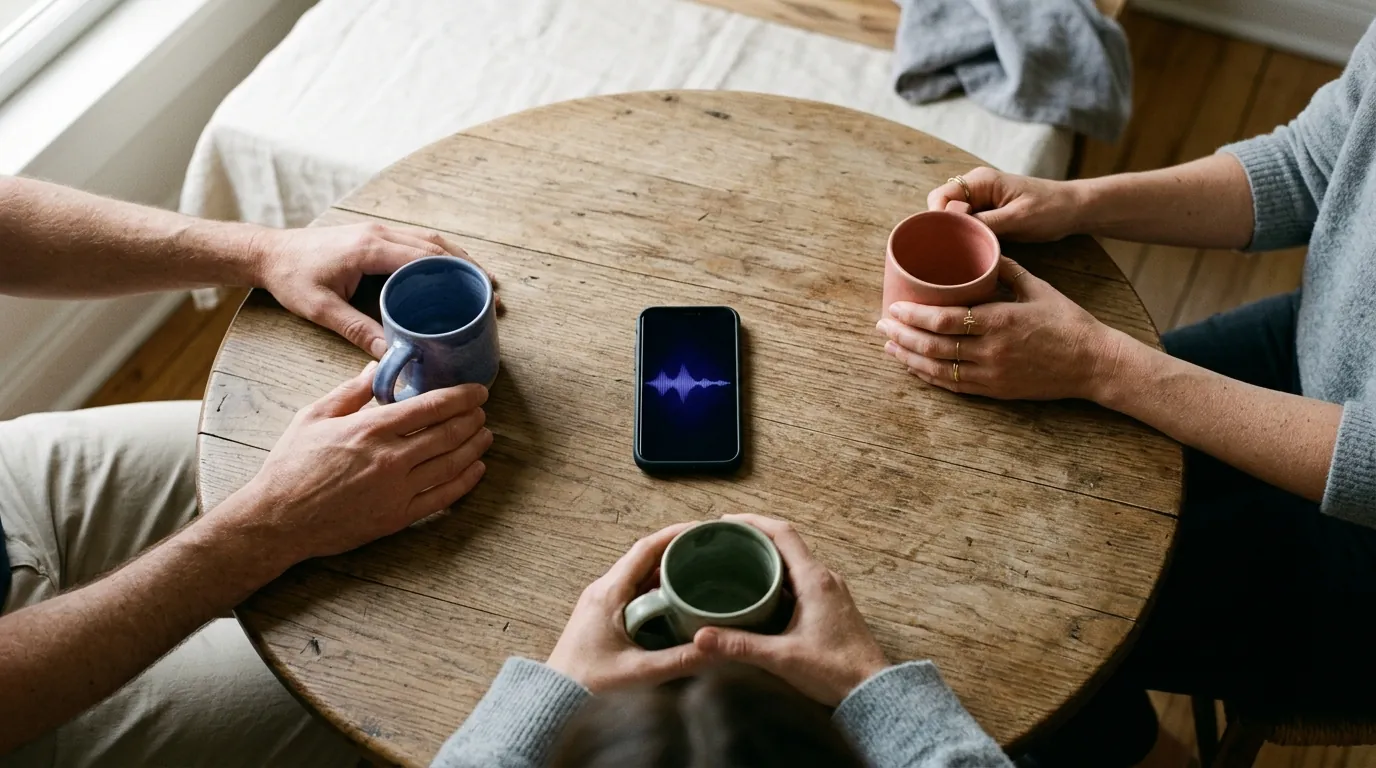
One phone at roughly equal distance from everyone works better than a phone next to one person. If someone speaks softly, nudge it toward them. If your app labels speakers, tell it how many people spoke so it doesn't have to guess; in Hushtext you can set the number of speakers and rename them afterward. Our guide to speaker diarization explains how apps tell voices apart and what confuses them.
6. Make a 30-second test recording
Before an interview or a long meeting, record a few sentences from where people will actually sit, then play it back with headphones. If you have to strain to understand a word, the software will likely struggle too. Move the phone now, not after the meeting.
Set up the app
7. Set the language when you know it
Automatic language detection is convenient, but it decides from the beginning of the recording, and an unusual opening or a strong accent can push it toward the wrong language. If you always speak the same language, set it: in Hushtext, open Settings and choose it under Language. If you record in several languages, or a recording switches between them, see how to transcribe multiple languages.
8. Add names and terms to the vocabulary
Speech models spell unfamiliar words the way they sound. Add the names of people, products and places, plus the jargon you use often, to the app's custom vocabulary (in Hushtext, Settings › Vocabulary). Do it before an important recording, rather than fixing the same name over and over afterward.
While you record
9. Keep to one voice at a time
Overlapping speech is hard to transcribe, and it confuses speaker labels too. You don't need to run a meeting like a courtroom, but a quick "one at a time, so the recording catches it" at the start helps. If someone interrupts during an important point, ask them to repeat it.
10. Pause during breaks, music and long silences
Whisper, the speech model Hushtext uses, can occasionally write words nobody said during long silences or music. If there's a coffee break or a video playing, pause the recording. In Hushtext you can pause from the Live Activity on the Lock Screen or in the Dynamic Island.
11. Transcribe the best copy of a file
For audio you already have, transcribe the original file, not a copy re-recorded through a speaker or one that's been heavily compressed along the way. Every extra step loses detail the model could have used. Hushtext imports audio and video files directly, and you can also share them to it from other apps through the share sheet or Files.
After you record
12. Fix the right words first
Don't reread the transcript from the top. Start with what's most likely to be wrong:
- Go to the marked words. Hushtext marks words Whisper was unsure of. Tap one to jump there and hear it, then touch and hold it to fix it.
- Check names and numbers. These are the errors that change meaning, and a misheard figure reads just as smoothly as a correct one.
- Use Find and Replace when a name is misspelled the same way throughout, then add it to the vocabulary so it's more likely to come out right next time.
- Check the language if whole passages look like nonsense. Transcribe the recording again in the right language.
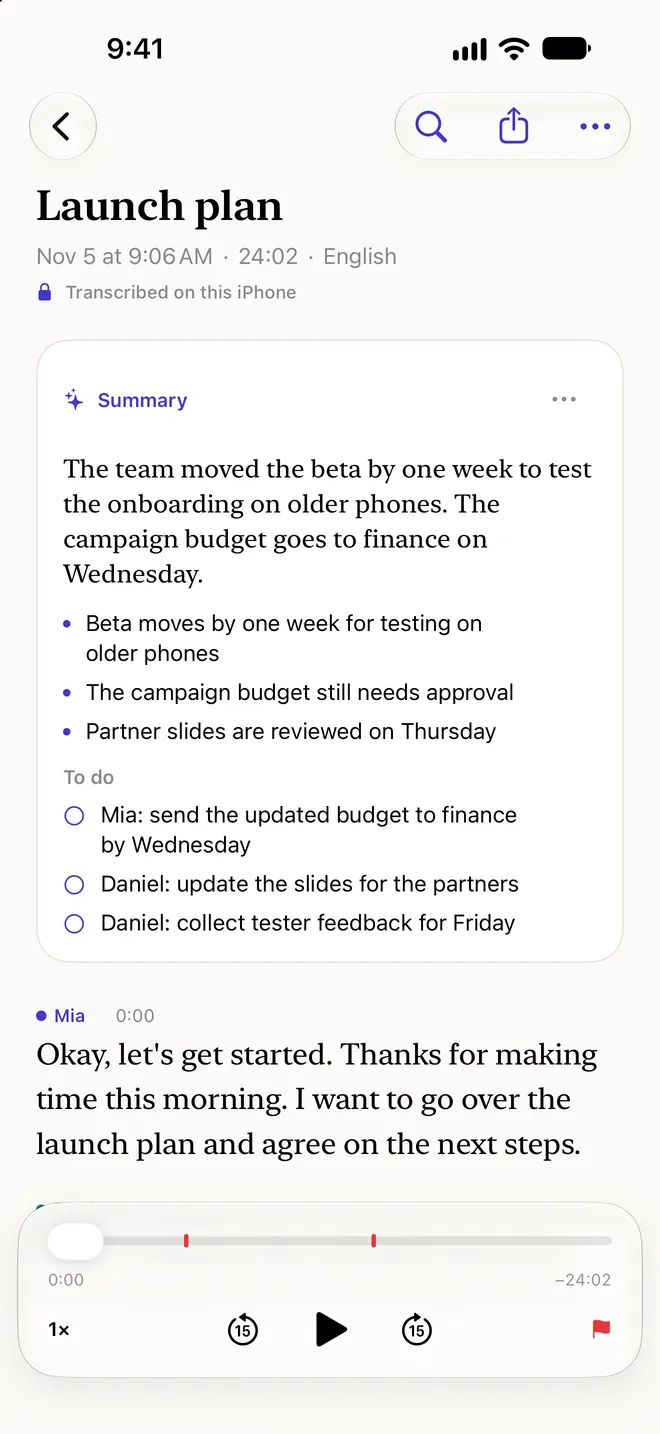
Playback speed helps too. Hushtext plays from 0.75× to 2×: slower for a fast talker you're checking word by word, faster for skimming a section you trust.
How to tell whether it's working
Change one thing at a time and compare. Record the same kind of session before and after you move the phone closer or set the language, and see how many corrections you needed. If you want a number, word error rate is the standard measure, and our explainer walks through how to calculate it on your own recordings, along with the reasons a single score can mislead.
Keep in mind which errors are cheap. A wrong name takes seconds to correct, but a noisy room or a distant microphone can't be fixed afterward, which is why most of these tips happen before you press record.
FAQ
What affects transcription accuracy the most?
The recording itself: how close the microphone is, how much background noise and echo there is, and whether people talk over each other. Settings like the language and the custom vocabulary help after that.
Does speaking slowly improve transcription?
Clear speech at a natural pace works best. You don't need to slow down unnaturally, but finishing your words and sentences instead of trailing off helps.
Why does my transcript contain words nobody said?
Speech models like Whisper can occasionally invent text during long silences, music or noise. Pause the recording during breaks, and delete any sentence you don't recognize after listening to that spot.
Can I improve a transcript after recording?
Yes. If the language was detected wrongly, transcribe the recording again in the right one. Then fix the remaining words by hand, starting with the words marked as uncertain and any names and numbers.