How to Transcribe Multiple Languages, Even in One Recording
To transcribe recordings in different languages, use a speech model that detects the language for you. Whisper, for example, handles 99 languages. The tricky case is a single recording that switches languages, because the language is usually detected once, at the start: for those, set the language yourself or transcribe the recording again in the second language.
How automatic language detection works
When you start a recording, the model listens to the opening and decides which language it's hearing. It then transcribes the whole recording in that language. In Hushtext, that decision is made at the start of each recording.
That works well when each recording sticks to one language. You can record a team meeting in Spanish in the morning and a lecture in English in the afternoon, and each comes out in its own language without touching a setting.
It goes wrong in three situations:
- The recording switches languages. The model keeps transcribing in the language it picked, so the parts in the other language come out badly.
- The opening isn't typical. A meeting that starts with a greeting in another language, or a few seconds of noise before anyone speaks, can tip the decision the wrong way.
- A strong accent. Occasionally, someone speaking one language with a strong accent is detected as speaking another.
Choose the setup that fits how you talk
You always speak the same language
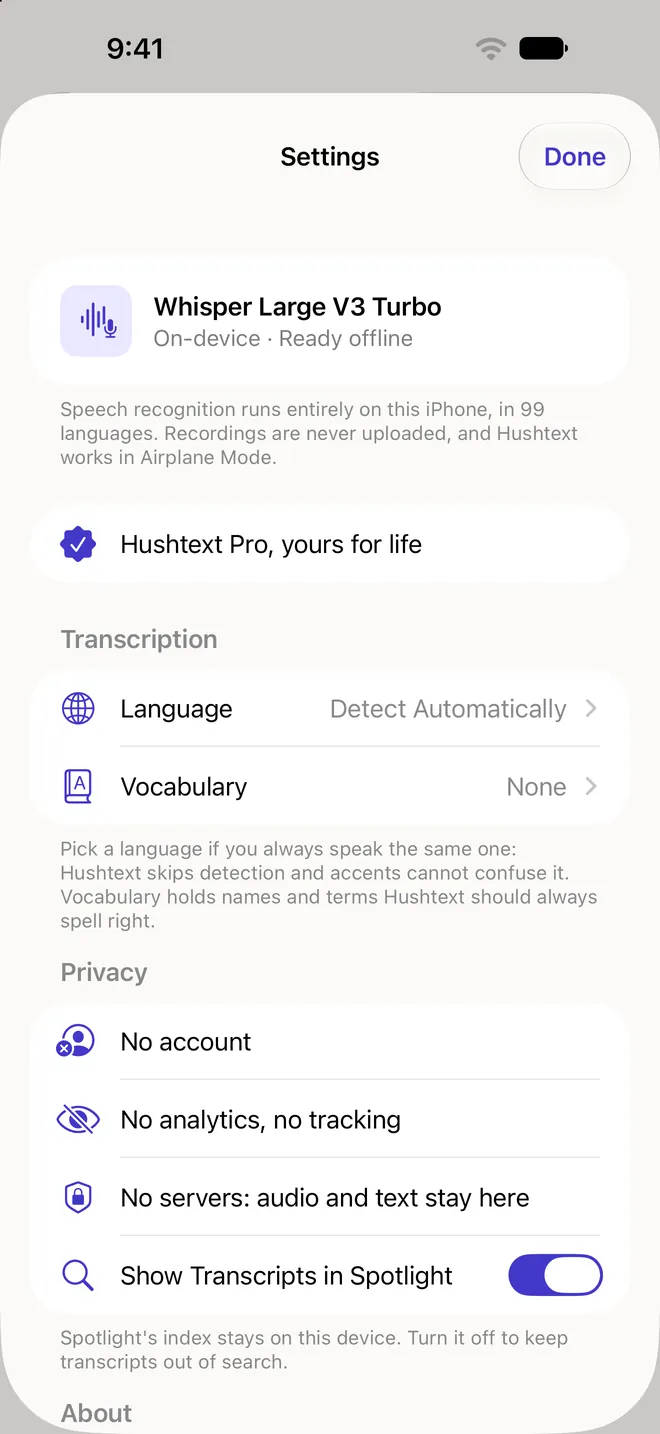
Set it once and stop worrying about detection. In Hushtext, open Settings and choose your language under Language. Detection is skipped, so an accent or an odd opening can't push it toward the wrong language, and your results become more consistent.
Your recordings are in different languages, one at a time
Leave the language on Detect Automatically and help it decide:
- Start speaking in the recording's language right away. Skip the small talk in another language, or start recording after it.
- Avoid long silence or noise at the very beginning.
- If a recording still comes out in the wrong language, transcribe it again and choose the right language yourself. In Hushtext, you can transcribe any recording again in a language you choose.
One recording switches languages
Bilingual meetings, family conversations and interviews where people slip between languages are the hardest case. Here's a workflow that works with any app that lets you pick the language:
- Start in the main language. Whichever language most of the recording is in, or whichever part you most need accurately, should come first.
- Read through the transcript. Passages in the other language will stand out as nonsense or wrong-language text.
- Save what's good. Copy the transcript text before you go further, especially if you've already edited it.
- Transcribe again in the second language. The passages that were garbled the first time should now come out readable.
- Combine the two. Paste the good passages from each version into one document, in order.
If you know a switch is coming, there's an easier way: stop and start a new recording at the switch. A conference where the morning sessions are in one language and the afternoon in another becomes two recordings, each with its own detection.
Interviews through an interpreter
When every sentence is said twice, once in each language, decide which language you need as text. For quotes, that's usually the original speaker's language; for your own notes, it may be the interpreter's. Transcribe in that language. If you need both, transcribe twice and keep both versions.
Accents, dialects and less common languages
Speech models aren't equally good at every language. Whisper learned from audio on the web, so languages that are widely spoken and well represented online tend to come out better than languages with little recorded material. A few practical points:
- Accents. Setting the language removes the risk of wrong detection. After that, recording quality matters most: a close microphone and a quiet room help an accented speaker as much as anyone. Our tips to improve transcription accuracy go through the setup step by step.
- Regional dialects. Strong dialects may come out in the standard written form of the language, or with misheard words. Test with a short recording of your own before something important.
- Borrowed words and names. English product names in a German meeting, Spanish place names in an English interview, a colleague's name from a third language: add them to the custom vocabulary (in Hushtext, Settings › Vocabulary) so they're spelled your way.
To see how these errors are measured, and why one accuracy figure rarely tells the whole story, read our explainer on word error rate.
Transcription isn't translation
Transcription writes down the words in the language they were spoken. Translation turns them into another language. Whisper as a model can also translate speech into English, but that's a separate task from transcription, covered in our guide to Whisper Large V3 Turbo.
If you need a translation, transcribe first, then translate the text and keep the original next to it. That way you can always check a translated quote against what was actually said.
Summaries in other languages
In Hushtext, transcription covers all of Whisper's 99 languages, and it runs on the device in every one of them, so it works offline wherever you are; our guide to offline speech to text explains why that matters. Summaries and to-dos are a separate step: Apple Intelligence writes them on the iPhone, as part of Hushtext Pro, only on iPhones that support Apple Intelligence, with it turned on, and only in languages Apple Intelligence supports. Settings shows whether summaries are available. If your recording is in a language Apple Intelligence doesn't support yet, you still get the transcript.
FAQ
Can I transcribe two languages in one recording?
Yes, but usually in two passes. Detection picks one language at the start, so transcribe once in the main language, then transcribe again in the second and combine the parts that came out right.
How many languages can Whisper transcribe?
Whisper transcribes 99 languages and detects the language automatically. Accuracy varies, with widely spoken languages generally doing better.
Why did my transcript come out in the wrong language?
Detection is decided at the start of the recording, so an unusual opening or a strong accent can mislead it. Transcribe the recording again in the right language, and set a default language if you always speak the same one.
Does transcription translate my recording?
No. Transcription keeps the words in the language they were spoken. Translation is a separate step; transcribe first, then translate the text.