How to Create an SRT Subtitle File from Audio on iPhone

To create an SRT file from audio, transcribe the recording with a tool that keeps timestamps, then export the result as subtitles: numbered cues, each with a start time, an end time and a line or two of text. On iPhone you can do it offline in Hushtext: record or import the audio or video, fix any words, and export Subtitles (SRT) with Pro.
An SRT file is plain text, so you can open and edit it anywhere, and most video editors, video platforms and media players accept it.
What an SRT file is
An .srt file is the simplest common subtitle format: a list of numbered cues separated by blank lines. Each cue has four parts:
- A cue number, counting up from 1.
- A timing line: the start time, an arrow, and the end time, for example 00:00:01,000 --> 00:00:04,000.
- The text, one or two lines.
- A blank line that ends the cue.
Times are written as hours, minutes, seconds and milliseconds. Note the comma before the milliseconds. It's the detail people most often get wrong when they edit a file by hand.
SRT vs VTT
WebVTT (.vtt) is the web's subtitle format, and it looks almost the same. A VTT file starts with a line reading WEBVTT, uses a period instead of a comma before the milliseconds, and doesn't require cue numbers. Many tools accept both. If one insists on VTT, you can convert an SRT file by adding that first line, followed by a blank line, and changing the commas in the timing lines to periods.
Subtitles vs captions
Subtitles carry the dialogue. Captions also describe sounds, such as [music] or [door closes], and say who is speaking when it isn't obvious, for viewers who can't hear the audio. An SRT file can hold either; sound descriptions are something you add by hand.
How to create an SRT file on iPhone
- Get the audio in. Record in Hushtext, import an audio or video file, or share one from Files or another app through the share sheet. Our guide to transcribing video on iPhone covers importing in more detail.
- Check the language. It's detected automatically at the start. If you always work in one language, you can set a default in Settings; if a recording switches languages, transcribe it again in the language you choose.
- Let it transcribe. Long files keep transcribing in the background, entirely on the device, so even a long video never has to upload anywhere.
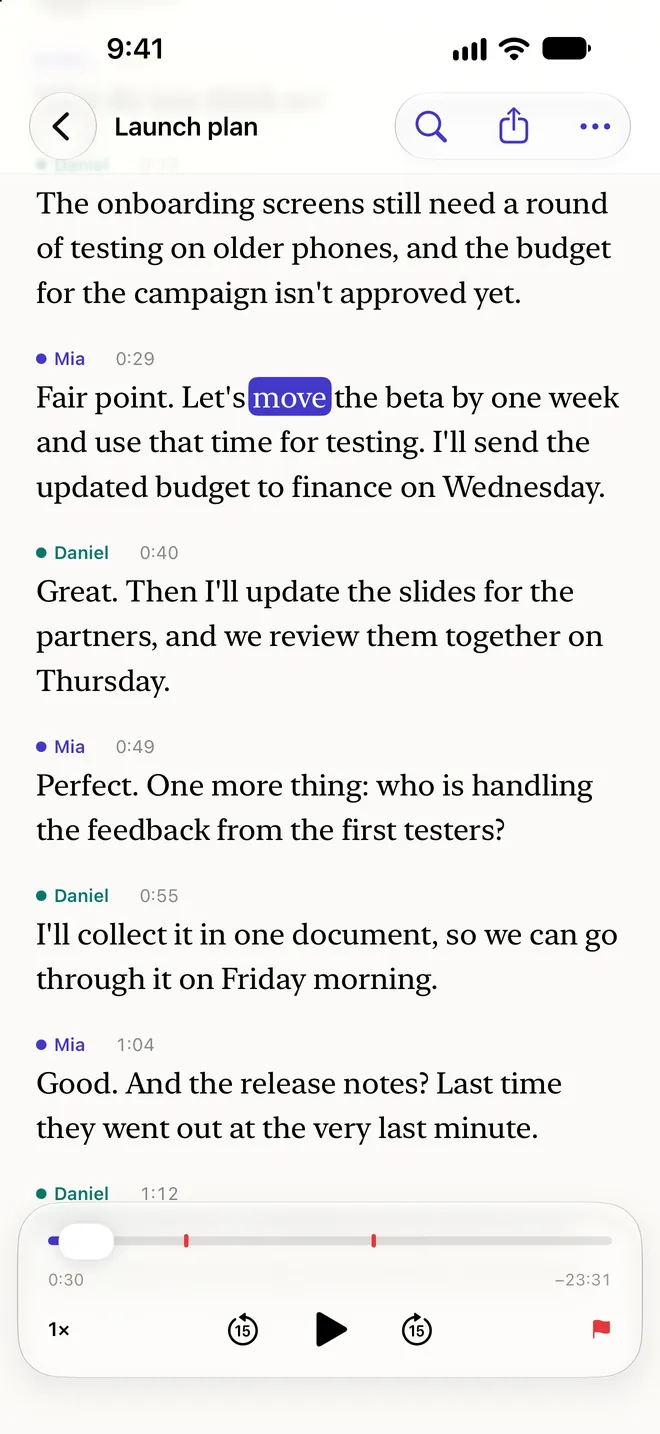
- Review while you listen. Playback highlights each word as it's spoken. Tap any word to jump there, and slow playback to 0.75× for fast speech. Words Whisper was unsure of are marked, so check those first.
- Fix the text. Touch and hold a word to correct it, edit whole paragraphs, or use Find and Replace for a name that's wrong all the way through. It's much easier to fix text here than inside a subtitle file.
- Export Subtitles (SRT). With Pro, save the .srt file to Files, send it to your Mac with AirDrop, or open it in another app.
The free version transcribes your first 3 recordings in full and then the first 3 minutes of each; SRT export is part of Pro.
Editing text and timing after export
Because SRT is plain text, any plain-text editor can open it, and a dedicated subtitle editor makes timing changes easier. When you edit by hand:
- Keep the timing format exact: two digits each for hours, minutes and seconds, three for milliseconds, a comma before the milliseconds, and a space on each side of the arrow.
- Keep cues in order, without overlaps. Each cue should end before the next one starts.
- Keep the blank lines. A missing blank line merges two cues into one.
- Save as UTF-8. It keeps accented letters and non-Latin scripts intact.
- Shift, don't retype. If the video gained an intro or lost a few seconds at the start, move all the cues by the same amount in a subtitle editor or your video editor instead of changing every timestamp.
What makes subtitles easy to read
These conventions are common across subtitle style guides:
- Short lines. Roughly 40 characters per line at most, and no more than two lines per cue.
- Break at natural pauses. Split lines between phrases rather than in the middle of one: "every morning / at nine" reads better than "every / morning at nine."
- Give people time to read. A cue that flashes by in under a second is hard to catch, and one that stays up through several sentences makes viewers lose their place.
- Mark speaker changes. When two people speak within one cue, start each of their lines with a hyphen.
- Decide about fillers. Removing "um" and false starts makes subtitles easier to read; keep them only if the exact delivery matters.
Using SRT files in video editors and players
- Video editors. Most desktop video editors can import an SRT file as a caption or subtitle track, usually from the import menu. Once it's on the timeline, you can restyle it, nudge the timing and, if you like, burn it into the picture.
- Video platforms. Upload the .srt as a subtitle or caption track alongside the video, and viewers can turn it on or off.
- Media players on a computer. Give the .srt file the same name as the video and put both in the same folder; many players load it automatically.
- Burned in or separate. Burned-in (open) subtitles are part of the picture and always visible, which suits places that don't accept caption files. A separate SRT track can be turned off, corrected or translated later without exporting the video again.
Tips for accurate subtitles
- Transcribe the finished edit. If you subtitle raw footage and then edit the video, every timestamp after the first cut is wrong. Export the finished edit and transcribe that.
- Use the voice without music if you can. Speech recognition does best on clean speech. If your editor can export the final edit's dialogue on its own, transcribe that version; the timing still matches the finished video.
- Add names and jargon to the custom vocabulary before transcribing, so people's names and product names are more likely to come out right.
- Start with a clean recording. Our tips to improve transcription accuracy cover microphone distance, noise and language settings.
Subtitling an interview? Our guide to transcribing interviews covers checking quotes against the audio before they go on screen.
FAQ
Can I make an SRT file on iPhone without a computer?
Yes. Transcribe the audio or video on the iPhone, fix the text, and export the subtitles as an .srt file. In Hushtext, SRT export is part of Pro, and everything runs on the device.
What's the difference between SRT and VTT?
Both are plain-text subtitle formats made of timed cues. VTT files start with a WEBVTT line and use a period before the milliseconds, while SRT uses a comma. Many tools accept both.
Why are my subtitles out of sync?
Usually the SRT was made from a different version of the video, for example before an intro was added or a scene was cut. Shift all the cues by the same amount in a subtitle or video editor, or transcribe the finished edit again.
How do I add an SRT file to a video?
Import it into your video editor as a caption track, or upload it next to the video on a platform that supports subtitle files. To make the subtitles part of the picture, burn them in when you export from the editor.