How to Transcribe a Video to Text on iPhone
To transcribe a video on iPhone, open it in Photos or Files, tap Share and choose a transcription app that accepts video; the app takes the sound from the video and turns the speech into text. If the video only lives on a website or in a streaming app, look for its own captions or transcript first, and use a screen recording only when you're allowed to.
The same steps work for podcasts, webinars, lecture recordings and anything else with a soundtrack. Here's how to handle each kind of source, long files, and turning the result into subtitles.
Start with where the video lives
| Where the video is | What to do |
|---|---|
| Photos (recorded on your iPhone, saved from Messages, received by AirDrop) | Share it from Photos |
| Files, iCloud Drive or another storage service in Files | Import it from inside the app, or share it from Files |
| An email attachment | Open it and tap Share |
| A website or streaming app | Check for captions first, then consider a screen recording |
| A podcast you produce | Import the audio file you exported, not the video version |
How to transcribe a video from Photos
- Open Photos and tap the video.
- Tap the Share button.
- In the row of apps, tap your transcription app. If it isn't there, swipe to the end of the row and tap More.
- Open the transcription app to start the transcript.
Your video stays in Photos untouched. The app works on its own copy.
One catch: if you use iCloud Photos with storage optimization on, the full video may live in iCloud, and your iPhone has to download it before it can share it. That step needs a connection. The transcription itself, in an on-device app, doesn't. Hushtext, for example, runs Whisper, OpenAI's speech recognition model, on the iPhone, so nothing is uploaded and it works in Airplane Mode.
How to transcribe a video file from Files
- Open the transcription app and tap its import button.
- Browse to the file: On My iPhone, iCloud Drive, or any storage service you've added to Files.
- Tap the file. The app copies it and starts transcribing.
You can also go the other way: in Files, touch and hold the video, tap Share, and pick the app.
If the app says the file has no readable audio, the video may have no sound track at all, or it may use a format the iPhone can't play. Check that it plays with sound in Files first. If it doesn't, export it again from the original software in a common format such as MP4 or MOV.
Videos you can't download: websites and streaming apps
Many videos never exist as a file on your phone. Before you try to capture one, check the easy options:
- Built-in captions or transcripts. Many video sites and course platforms offer captions, and some show a full transcript next to the video. Podcasts often publish transcripts too, and Apple's Podcasts app shows them for many episodes.
- Ask for the file. If it's a recorded meeting, class or webinar, the organizer may be able to send you the recording.
If neither works, a screen recording can capture the sound as the video plays:
- Make sure Screen Recording is in Control Center. If it isn't, edit Control Center and add it.
- Open Control Center, touch and hold Screen Recording, and check that Microphone is off, so the room around you doesn't end up in the audio.
- Turn on Do Not Disturb or a Focus so notification sounds don't interrupt.
- Start the recording, switch to the video and play it with the sound on.
- When it ends, stop the recording from Control Center or the red indicator at the top of the screen. It's saved to Photos.
- Share it from Photos to your transcription app, as above.
Some apps block screen recording, and you'll get silence or a black screen. Respect that, and only transcribe content you have the right to use. Personal study notes are one thing; republishing someone else's words is another.
Long videos, webinars and podcasts
Long recordings are where a phone that does the work itself needs a little planning.
- Plug in for very long files. On-device transcription uses your iPhone's own processor, so a long file uses battery.
- Leave it running. A good app keeps transcribing in the background and picks up where it stopped if it's interrupted, instead of starting over.
- Label speakers in panels and interviews. If the app offers speaker labels, tell it how many people spoke, then rename "Speaker 1" and "Speaker 2" to real names.
- Know the free limit. Hushtext transcribes your first 3 recordings in full for free, then the first 3 minutes of each recording. Hushtext Pro transcribes files of any length.
Getting accurate text from video audio
Video sound is often harder to transcribe than a voice memo, because it's mixed for watching, not for reading.
Music and sound effects compete with speech. A music bed under narration lowers accuracy, and speech models can occasionally write words that weren't said during long stretches of music or silence. Skim the parts of the transcript where nobody should be talking.
Intros can fool language detection. Whisper decides the language at the start of a recording. If a video opens with music, a jingle or a greeting in a different language, the guess can be off. Transcribe it again and pick the language yourself, or set a default language in Settings.
Names and jargon need help. Add product names, people and technical terms to the custom vocabulary, then transcribe again.
Check against the sound. In Hushtext, playback highlights each word as it's spoken, and tapping a word jumps to that moment. Words Whisper was unsure of are marked, so start there. Touch and hold a word to fix it, or use Find and Replace for a name that's wrong all the way through.
For more ways to raise accuracy, see the tips in the complete guide to transcribing audio on iPhone.
Turning the transcript into subtitles
If you transcribed your own video, you probably want captions. The standard format is SRT, a plain-text file where each subtitle, called a cue, has three parts:
- A number: 1, 2, 3 and so on.
- A timing line such as 00:00:01,000 --> 00:00:04,000, which means "show this from second 1 to second 4."
- The words to show on screen.
Hushtext Pro exports SRT straight from the transcript. Fix the text first, because every correction you make carries into the subtitles. Then import the file into your video editor or upload it alongside the video to a platform that accepts SRT captions. The details, including fixing line length and timing, are in how to create an SRT file from audio.
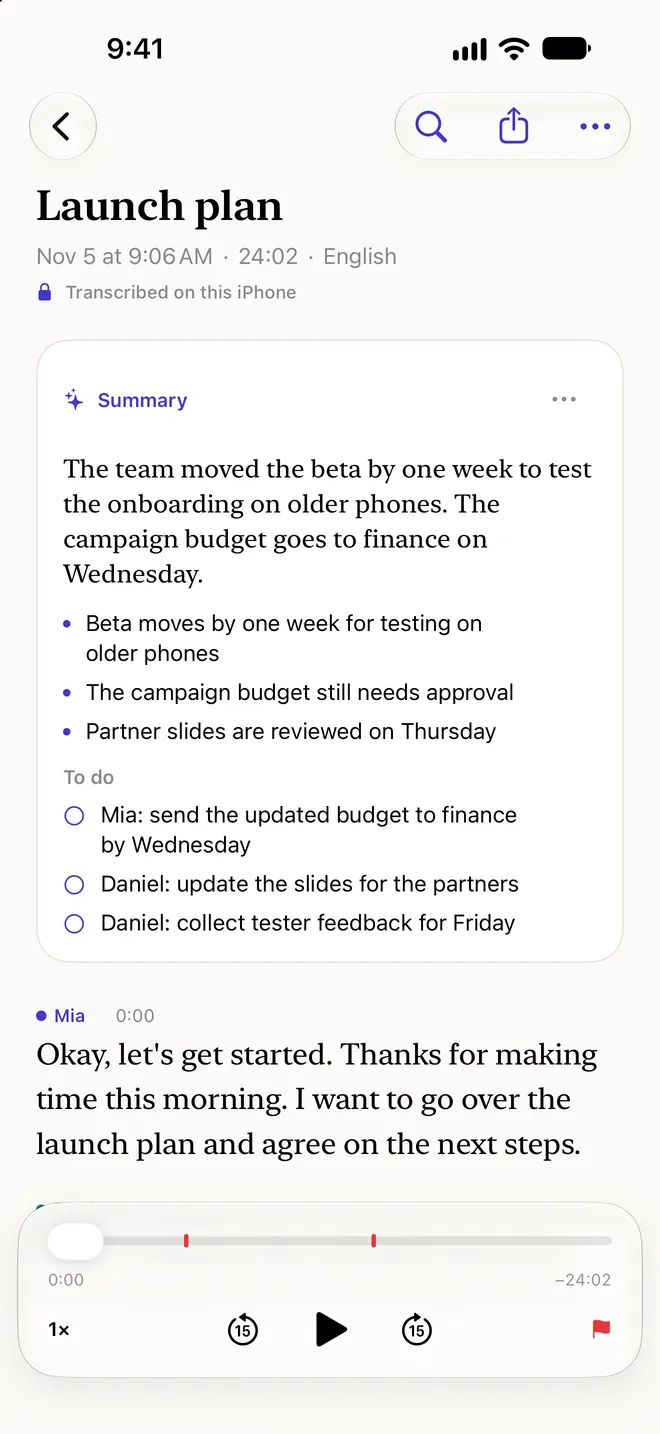
Not making subtitles? Copy the text, share it as plain text, or with Pro export Markdown for show notes or a blog post. On iPhones that support Apple Intelligence, Pro can also write a summary and to-dos on the device.
Working with audio-only files instead, like interviews or old memos? The same import and share steps apply, and turning voice memos into text covers the Voice Memos side.
FAQ
Can I transcribe a video from a website on iPhone?
Check for the site's own captions or transcript first. If there aren't any and you have the right to use the content, a screen recording with sound captures the audio, and you can share it to a transcription app from Photos.
Do I need internet to transcribe a video?
Not with an on-device app. Hushtext transcribes in Airplane Mode. You only need a connection if the video itself has to download first, for example from iCloud Photos.
Can I get subtitles from a video on iPhone?
Yes. Transcribe the video, correct the text, then export an SRT file and add it in your video editor or on the platform where you post.
How long can the video be?
It depends on the app and your storage. With an on-device app the phone does all the work, so plug in for long videos and let the app run in the background.