How to Choose a Private Transcription App for Confidential Conversations
The most private way to transcribe a confidential conversation is with an app that runs speech recognition on your own device: nothing is uploaded, there's no account, and no copy sits on someone else's server. That narrows the risks to the ones you control yourself, such as backups, search, sharing and how long you keep recordings. Use the checklist below before you record a client, a patient, an employee or a source.
This is general information, not legal or compliance advice. Your professional rules, your employer's policies and the law where you work decide what you may record and how you must keep it.
Before you choose an app
1. Where does the audio go?
This question decides almost everything else. Cloud transcription uploads your recording to a company's servers; on-device transcription processes it on your phone. Once audio is on a server, its safety depends on that company's security, staff access, retention rules and how it answers legal requests, none of which you control.
You can test it yourself:
- Turn on Airplane Mode, and check in Control Center that Wi-Fi is off too.
- Record a short sample and stop.
- If text appears, transcription happens on the device. If the app waits until you're back online, it uploads.
Our guide to offline speech to text explains the difference and its trade-offs in more detail.
2. Does it require an account?
An account ties your recordings to your identity on someone else's system, and it usually means something is stored there. An app that works without signing in has less to leak. That isn't proof of privacy, but it's a good sign.
3. Is your audio used for anything else?
Read the privacy policy for phrases like "to improve our services" or "quality review." Wording like that can mean recordings are used to train models or are listened to by staff. Look for a plain statement of what is collected and why, or better, a statement that nothing is.
4. Does the app track you?
Check the App Privacy section on the app's App Store page. Even when analytics and advertising tools never touch your audio, they can report when and how often you use the app. For some work, the fact that a conversation happened is itself sensitive.
5. Is anyone else in the room?
A meeting bot that joins a video call sends the conversation to a service, and everyone sees a participant they didn't invite. For a confidential talk, a recording on your own device is simpler to explain and to control.
Before you record
6. Ask for consent
Tell everyone that you're recording and why, and ask. In some places the law requires everyone's consent; everywhere, it's the respectful default and the safest practice. Our general guide, is it legal to record a conversation?, covers the basics.
7. Lock down the phone
A recording is only as private as the device it lives on. Use a strong passcode with Face ID or Touch ID, and don't leave the phone open on the table while you step out.
8. Record only what you need
If part of a conversation doesn't need to be on record, pause. A recording that doesn't exist can't leak. In Hushtext, Pause is on the Lock Screen and in the Dynamic Island while you record, and a phone call pauses the recording instead of ending it.
After you record
9. Keep transcripts out of search
Apps can add their content to the iPhone's Spotlight search. That's handy, until a confidential line appears in search results while someone looks over your shoulder. Hushtext adds titles and transcripts to the iPhone's own on-device Spotlight index, and for confidential work you can turn this off with Show Transcripts in Spotlight in Hushtext's Settings.
10. Know where your backups go
App data on an iPhone is generally included in the iPhone's backups, whether they go to iCloud or to a computer. Decide on purpose rather than leaving it to defaults:
- If you back up to a Mac or PC, turn on the option to encrypt local backups.
- If you use iCloud Backup, consider Apple's Advanced Data Protection for iCloud, where available, which adds end-to-end encryption to iCloud Backup.
- Think about who else can open your backups, such as a shared family computer.
11. Share deliberately
Every export creates a copy outside the app. An email attachment sits in at least two mailboxes, and a shared cloud folder syncs to more devices than you can see. Share the text rather than the audio when the text is enough, send it only to the people who need it, and prefer a direct route, such as AirDrop to your own Mac, over email.
12. Decide how long to keep it
Set a retention rule for yourself, for example deleting the recording once your notes are written, or keeping it until a matter is closed. Then remember the copies: a recording you imported still exists in Voice Memos or Files, deleted items wait in Recently Deleted for a while, and exported files live wherever you sent them.
13. Check where summaries are made
In some apps, transcription happens on the phone but AI summaries are sent elsewhere. Ask where each feature runs. In Hushtext, summaries and to-dos are written on the iPhone by Apple Intelligence (a Pro feature on iPhones that support Apple Intelligence, with it turned on, in languages it supports).
The checklist at a glance
| Question | Reassuring answer | Warning sign |
|---|---|---|
| Where is speech recognized? | On the device, also in Airplane Mode | "Transcribing when you're back online" |
| Do I need an account? | No | Sign-in required before first use |
| Is my audio used for anything else? | A clear no | "To improve our services" |
| Is there tracking? | No analytics, no ads | Analytics or advertising listed |
| Where are summaries made? | On the device | Not stated |
| Who holds copies? | You and your own backups | A server copy kept for an unstated time |
How Hushtext fits the checklist
Hushtext runs OpenAI's Whisper Large V3 Turbo entirely on your iPhone or iPad. Audio and text never leave the device, and it works in Airplane Mode. There's no account, no sign-in, no ads, no analytics and no tracking, and Chili Logic runs no servers that receive audio or transcripts. Recordings made on the Apple Watch go straight to the paired iPhone over Apple's own Watch–iPhone connection, with no server in between.
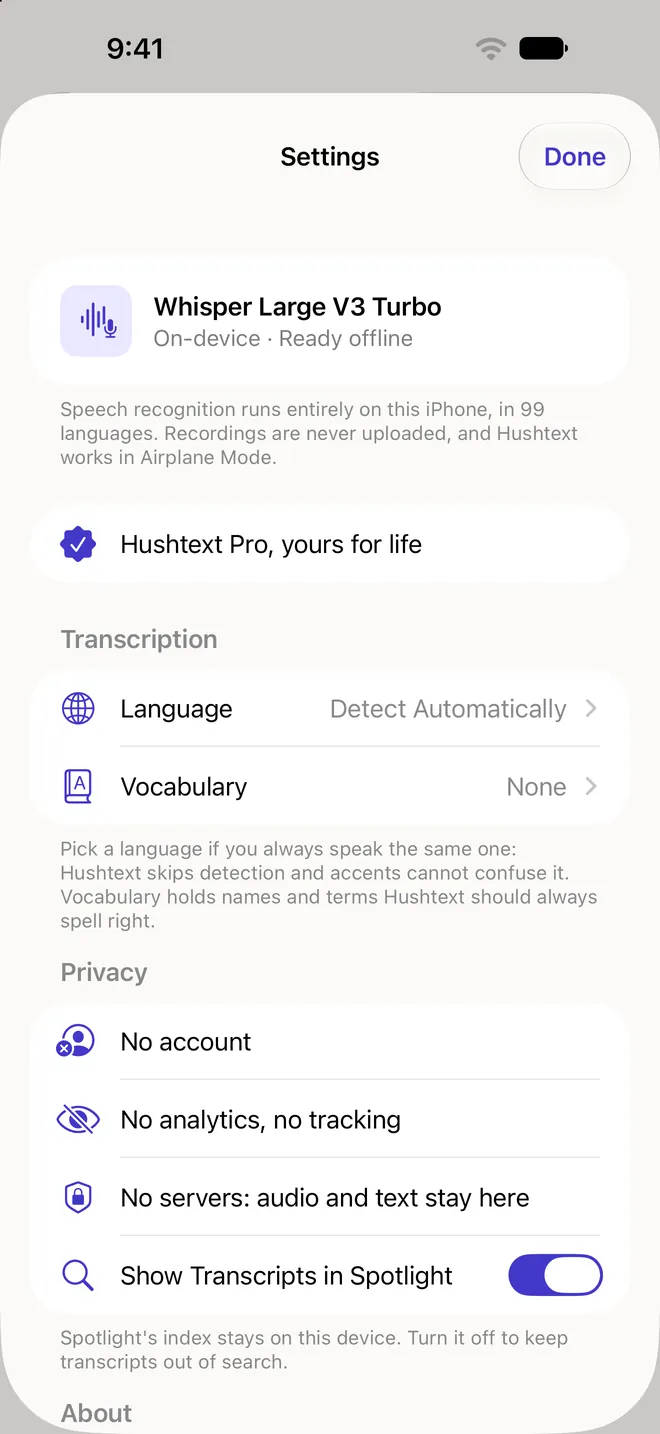
What's left is yours to manage: consent, your passcode, backups, Spotlight and what you choose to share. Our privacy policy sets out the details. If you interview sources, our guide to transcribing interviews covers checking quotes against the audio.
FAQ
What is the most private way to transcribe audio?
Use an app that transcribes on the device, works in Airplane Mode and needs no account. Then manage the remaining risks yourself: backups, search, sharing and how long you keep recordings.
Is on-device transcription enough for confidential client work?
It removes one big risk, uploading to a third party, but no app settles your obligations on its own. Those depend on your profession, your employer and local law, so check them and get consent.
Can my transcripts end up in iCloud?
Yes, through your iPhone backups if you use iCloud Backup, since app data is generally included. Advanced Data Protection for iCloud, where available, adds end-to-end encryption to those backups.
Should I delete recordings after transcribing?
If you don't need the audio, deleting it reduces what could leak. Keep it only as long as you need to check quotes or details, and delete the copies you exported or imported, too.